


Introduction
In Part 1 of this series, we looked at Adobe Skills. Skills teach AI coding assistants Adobe’s recommended way of doing things.
Skills tell the assistant how to do something. But on their own, they do not know what is happening in your running AEM instance right now. They do not know which bundle is stuck, what the last few requests looked like, or why a page is not caching. That is where Model Context Protocol (MCP) comes in.
In this part, we will look at how Adobe uses MCP to give AI coding assistants, like Cursor and Claude Code, live visibility into your local AEM and Dispatcher environments.
AEM Quickstart MCP Server
MCP, or Model Context Protocol, is an open standard that lets an AI assistant talk to external tools and services. Instead of relying only on the chat history or the file open in your editor, the assistant can call a tool and pull in real information: log entries, running service status, API responses, config files. This is the same thing a developer would do by checking a log file or hitting an endpoint. The assistant just does it as part of answering your question.
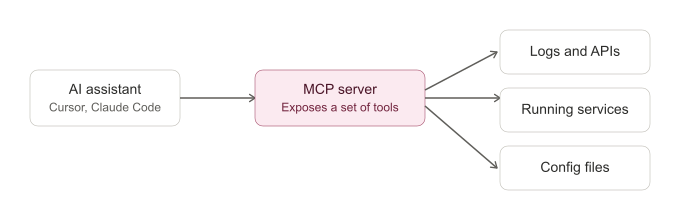
Adobe provides an MCP server for local AEM SDK (Valid for AEM as a cloud) development. Once it is connected, your AI assistant can look directly at your running Author or Publish instance, instead of relying only on the code you paste into the chat.
Prerequisites
- Validated with AEM SDK 2026.2.24678.20260226T154829Z-260200 and newer.
- A running local AEM Author and/or Publish instance.
- Install the AEM CQ Quickstart MCP Server v0.1.6 package through CRX Package Manager.
- The config below assumes Author runs on the default port 4502, and Publish runs on the default port 4503. If your local instances use different ports, update the URLs.
Configure the MCP Server
Add the following to the MCP config file of your agentic IDE or tool, for example Cursor’s mcp.json or Claude Code’s MCP settings.
Author

Publish

Reconnect the MCP servers from Cursor or Claude Code after you save the config.
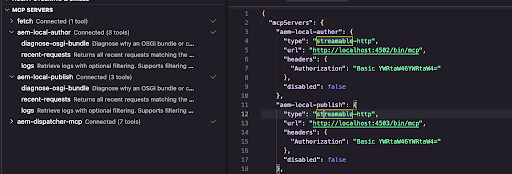
Available Tools
| Tool | Description |
|---|---|
| logs | Pulls AEM and OSGi log entries. You can filter by regex, log level, and entry count. |
| diagnose-osgi-bundle | Checks why an OSGi bundle or DS component will not start. Reports missing packages, unsatisfied references, and config issues. |
| recent-requests | Returns recent HTTP requests, with Sling resource resolution, script resolution, and filter chain details. |
A realistic example
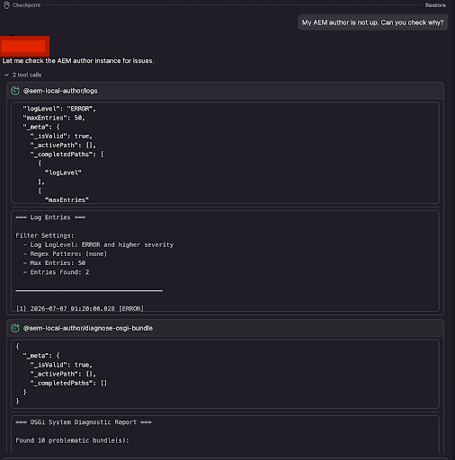
Say your local AEM author instance is not coming up, or a component just isn’t showing in the dialog and you can’t tell if it’s a startup problem. You ask:
“My AEM author is not up. Can you check why?”
That triggers two tool calls. logs pulls the recent ERROR-level entries first, then diagnose-osgi-bundle runs an OSGi diagnostic pass. In one run against a local instance, that second call flagged ten problematic bundles in one shot, something that would have taken a fair bit of clicking through the Felix console to find manually. From there, the assistant can point at the specific dependency chain that’s broken instead of just listing bundle names.
Other prompts that work well:
- “Show me ERROR logs from the last 100 entries.”
- “Analyze requests for /content/we-retail.”
- “Why is this servlet not resolving?”
- “Help me identify the cause of this 500 response.”
Dispatcher MCP Server
Adobe also provides an MCP server for Dispatcher development. It lets the assistant validate configs, check cache behaviour, analyse requests, and troubleshoot Dispatcher directly.
Packages
- Mac/Unix – AEM Dispatcher Tools for Unix/Mac with MCP Server v2.0.269.1 (Beta)
- Windows – AEM Dispatcher Tools for Windows with MCP Server v2.0.269.1 (Beta)
Installation (macOS)
chmod +x aem-sdk-dispatcher-tools-<version>-unix.sh
./aem-sdk-dispatcher-tools-<version>-unix.sh
cd dispatcher-sdk-<version>
chmod +x ./bin/docker_run_mcp.sh
./bin/docker_run_mcp.sh test
Make sure Docker Desktop is running before you run this.
Configure Dispatcher MCP
Add the following to the same MCP config file in your agentic IDE or tool.

Reconnect the MCP server after you save the config.
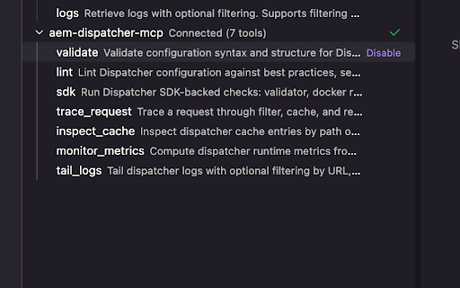
Available Tools
| Tool | Description |
|---|---|
| validate | Validates Dispatcher and Apache HTTPD configuration. |
| lint | Runs static analysis and checks best practices. |
| sdk | Runs Dispatcher SDK workflows, such as validate, docker-test, and check-files. |
| trace_request | Traces how Dispatcher processes a request. |
| inspect_cache | Checks Dispatcher cache behavior for a given URL. |
| monitor_metrics | Reads runtime metrics from Dispatcher and HTTPD logs. |
| tail_logs | Streams Dispatcher and Apache logs. |
A realistic example
Caching issues are usually the annoying kind: nothing throws an error, the page just keeps hitting Publish when it shouldn’t. You’d normally start diffing .any files by hand to figure out which rule is catching the request. Instead, try:
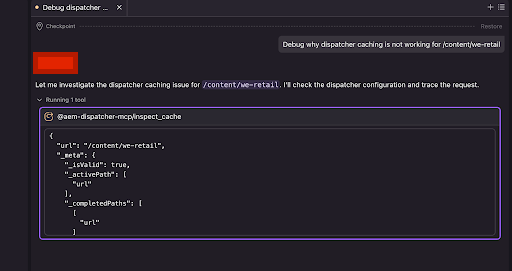
“Debug why dispatcher caching is not working for /content/we-retail.”
The assistant investigates the caching configuration and traces the request through inspect_cache, checking the rules for that exact path. Because the tool call is scoped to the URL you gave it, the answer comes back specific to that page rather than a generic rundown of your whole dispatcher config. In practice this usually turns out to be something like a no_cache rule that matches too broadly, or a query string that’s disabling the cache under your current setup, and you get told which one it is.
Other prompts that work well:
- “Validate my Dispatcher configuration.”
- “Trace the request for /content/we-retail/en.html.”
- “Review my rewrite rules.”
- “Show Dispatcher errors from the last five minutes.”
How Adobe Skills and MCP Work Together
Skills and MCP solve two different problems. They come together on a single prompt:
User prompt → Adobe Skill selected → MCP tool invoked → runtime data retrieved → AI generates response
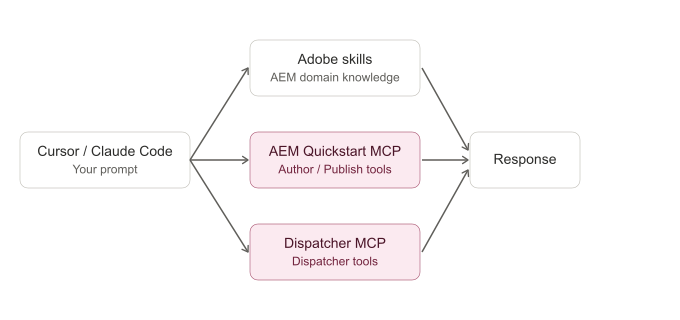
For example, say you ask the assistant to debug a failing workflow. It can use the aem-workflow skill from Part 1 to understand how AEM workflows are built, while pulling the actual failure straight from logs through MCP. The skill supplies the domain knowledge, MCP supplies the live evidence, and you need both. We’ve found a skill without MCP tends to guess at your environment, confidently, and a bit wrongly. MCP without a skill just hands you raw log data with no AEM-specific read on what it means.
Conclusion
Whether you are chasing an OSGi bundle, reviewing logs, checking a Dispatcher config, or tracing a request, MCP turns your AI assistant into something that can actually look at your project, not just talk about it in general terms.
If you have not read Part 1: Adobe Skills for AI Coding Assistants, start there before you set up these MCP servers. Together, the two parts cover the foundation for AI-assisted AEM development.