


A Practical Guide to Fixing CVEs in Amazon EKS Worker Nodes by Updating Node Group AMIs
Learn how to identify security vulnerabilities (CVEs) in your EKS worker nodes, update them safely without affecting running applications, and automate the process so your clusters stay secure over time.
Executive Summary
When you create an Amazon EKS cluster, the worker nodes run on Amazon Machine Images (AMIs). These AMIs contain the operating system, Linux kernel, container runtime, and other software required for Kubernetes to function.
Like any operating system, these components receive security updates over time. As new vulnerabilities (CVEs) are discovered, AWS builds and publishes updated EKS-optimized AMIs that include the necessary security fixes.
One thing that often catches teams by surprise is that AWS doesn’t automatically replace your existing worker nodes when a new AMI is released. If your node group was created several months ago and hasn’t been updated since, it’s probably still running the same AMI it started with.
Your applications may continue running without any issues, but the operating system underneath them could contain vulnerabilities that have already been fixed in newer AMIs. Most teams don’t notice this until they run a security scan or prepare for a compliance audit.
The good news is that updating worker nodes is a routine maintenance task. The overall process is simple:
- Check whether your node groups are using an outdated AMI.
- Update the managed node group to use the latest EKS-optimized AMI.
- Allow EKS to replace the old worker nodes one at a time.
- Verify that all workloads are running normally after the update.
In this guide, we will walk through each step and explain how to perform the update safely with little or no impact on your applications.
Understanding the Problem
A common misconception is that Amazon EKS automatically keeps every part of your Kubernetes cluster up to date. That’s only partly true.
AWS manages the Kubernetes control plane for you, which includes components such as:
- Kubernetes API Server
- etcd
- Scheduler
- Control Plane availability and upgrades
However, the worker nodes are your responsibility. That means you’re responsible for:
- Updating the operating system
- Installing security patches
- Keeping the Linux kernel up to date
- Fixing vulnerabilities found on the EC2 instances running your workloads
You can think it like this:
EKS Cluster
—————-
Control Plane
Managed by AWS : Automatically patched
—————-
Worker Nodes
Managed by You : Need manual updates
—————-
If you will not update your worker nodes, they will continue running an old operating system with known vulnerabilities.
What Is a CVE?
CVE stands for Common Vulnerabilities and Exposures.
A CVE is simply a publicly documented security flaw.
Example:
- Linux kernel vulnerability
- OpenSSL vulnerability
- glibc vulnerability
- containerd vulnerability
- systemd vulnerability
Assume AWS released an AMI in January.
January : AMI Version 1.0
your workloads are secured.
Then in March, researchers discover:
Ex: CVE-2026-12345(Linux Kernel Privilege Escalation)
AWS fixes it and releases new AMI:
April : AMI Version 1.1
But your cluster is still running on AMI Version 1.0
Your applications will work perfectly but the operating system underneath is vulnerable and this known as security drift.
How to Detect Vulnerable Worker Nodes
Before fixing it, you need to first know whether your nodes are outdated or not.
There are several ways to check that
Method 1: Amazon Inspector (Recommended)
Amazon Inspector continuously scans EC2 instances for known vulnerabilities.
It can detect issues like:
- Kernel vulnerabilities
- OpenSSL CVEs
- Package vulnerabilities
- High severity issues
- Critical vulnerabilities
Example findings:
Critical : CVE-2026-12345
Affected Package: kernel
Affected Instance: i-xxxxxxxxxx
This tells you which worker node is vulnerable.
Method 2: Trivy
If you are using Trivy(Open Source tool) then it can scan both:
- EC2 AMIs
- Container Images
Example:
trivy image nginx:latest
Or
trivy fs /
This identifies vulnerable operating system packages.
Method 3: AWS EKS AMI Release Notes
AWS publishes release notes every time a new EKS AMI is released.
Example release:
Amazon EKS Optimized AMI : 1.29-20260701
Includes fixes for:
CVE-2026-1111
CVE-2026-2222
CVE-2026-3333
If your node groups are using older AMI image then those vulnerabilities are still present.
Check Which AMI Your Worker Nodes Are Using
Run: aws eks describe-nodegroup –cluster-name my-cluster-name –nodegroup-name my-nodegroup-name –query “nodegroup.releaseVersion”
Example output you will receive : 1.29.2-20260xx
This will tell you the current AMI release your node group is running with.
Check the Latest Recommended AMI
AWS stores the latest recommended EKS AMI in the Systems Manager Parameter Store.
Run: aws ssm get-parameter –name/aws/service/eks/optimized-ami/1.29/amazon-linux-2/recommended/image_id –query “Parameter.Value” –output text
You will get something like: ami-0abc12345
If your node group’s release version is older than the latest recommended release, it is time to update it.
How EKS Updates Worker Nodes
When you are updating a Managed Node Group, EKS does not shut down all nodes at once.
Instead it replaces them gradually.
For example:
Old Nodes
Node 1
Node 2
Node 3
Node 4
EKS launches a new node first:
Node 1
Node 2
Node 3
Node 4
New Node
Once the new node becomes healthy:
- Pods move to the new node.
- One old node is drained.
- The old node is terminated.
This process repeats until all nodes get replaced.
Applications remain available during the update if they have deployed with enough replicas and sensible disruption budgets.
Rolling Update vs Force Update
Rolling Update (Recommended)
Rolling updates replace one node at a time.
The process contains:
- Launch a new node.
- Wait until it’s healthy.
- Drain an old node.
- Move pods.
- Delete the old node.
- Repeat.
This is the safest approach for production.
Force Update
Sometimes updates become stuck because Kubernetes is not allowed to evict pods.
In such cases, EKS offers a force update.
A force update ignores Pod Disruption Budgets (PDBs) and may interrupt workloads, so it should only be used when there are security risks of delaying the update is greater than the risk of downtime.
Step 1: Check Current AMI Version
aws eks describe-nodegroup –cluster-name my-cluster –nodegroup-name my-nodegroup –query “nodegroup.{current:releaseVersion,amiType:amiType}”
Example:
Current Release: 1.29.2-20260xx
Step 2: Check Pod Disruption Budgets
Before updating you need to ensure Kubernetes is allowed to move pods.
Run: kubectl get pdb –all-namespaces
Example:
NAME frontend-pdb
MIN AVAILABLE 2
If you have only one pod but your PDB requires it to stay available, Kubernetes cannot evict it, and the update will stop.
Step 3: Update the Node Group
If Terraform manages your infrastructure, update the launch template or AMI reference and apply the changes:
resource “aws_eks_node_group” “main” {
cluster_name = aws_eks_cluster.this.name
node_group_name = “primary”
launch_template {
id = aws_launch_template.node.id
version = aws_launch_template.node.latest_version
}
update_config {
max_unavailable_percentage = 25
}
}
Apply the update: terraform apply -target=aws_eks_node_group.main
If you need an urgent update without using Terraform files then you can use the AWS CLI CMD:
aws eks update-nodegroup-version –cluster-name my-cluster –nodegroup-name my-nodegroup
EKS then begins replacing nodes with instances launched from the newer AMI.
Step 4: Monitor the Update
Check the update status with below CMD:
aws eks describe-update –name my-cluster –nodegroup-name my-nodegroup –update-id <update-id>
Watch nodes joining and leaving the cluster: kubectl get nodes -o wide –watch
You will see new nodes coming up with the updated AMI while older nodes are cordoned, drained, and removed.
Step 5: Verify Everything Is Healthy
Once the update completes you have to confirm that there are no workloads stuck because of scheduling or capacity issues.
kubectl get pods –all-namespaces –field-selector=status.phase!=Running
If nothing is returned, it is a good sign that all pods are running normally.
You can also check Node status, All nodes should report a Ready status.
What If Something Goes Wrong?
Sometimes, a newly released AMI can cause an unexpected issue, such as a driver problem or incompatibility with your workloads.
If that happens, you can roll back by pointing your node group back to the previous launch template version.
View available launch template versions with Below CMD:
aws ec2 describe-launch-template-versions –launch-template-id lt-0123456789abcdef0
Then update Terraform to use the earlier version:
launch_template {
id = aws_launch_template.node.id
version = “5”
}
Then apply the changes with: terraform apply
EKS will replace the newer nodes with ones created from the old AMI.
Automating the Entire Process
Manually checking AMIs across multiple clusters quickly is difficult.
A simple automation can handle most of this work.
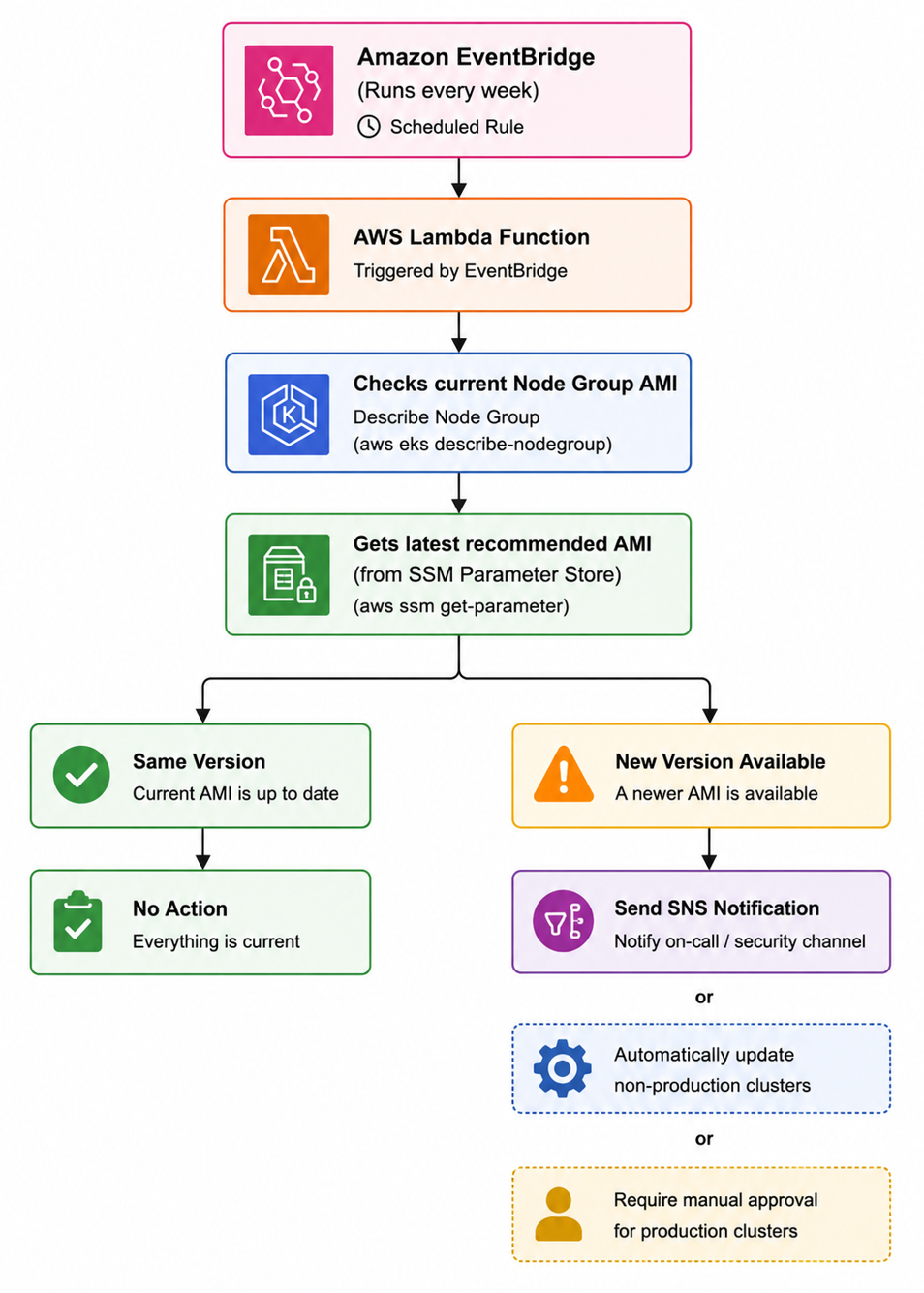
Automation
This ensures your clusters are checked regularly instead of relying on someone to remember.
Best Practices
- Update worker nodes regularly not just after an audit.
- Test new AMIs in development or staging before rolling them out in production.
- Keep launch template versions explicit so you can easily roll back if required.
- Review Pod Disruption Budgets before maintenance windows to avoid stalled updates.
- Automate weekly checks for new EKS AMI releases and notify your team when updates are available.
- Remember that updating the control plane does not update worker nodes & both need their own maintenance lifecycle.