


Introduction
Every AI tool we use daily, Cursor for coding, ChatGPT for everything else, runs on the same underlying economy: tokens. Every word it sends back costs tokens, and every word already in the conversation gets re-read, and re-billed, on every reply after that. Most sessions burn through far more of that budget than they need to, without anyone noticing, until a long session suddenly feels like the agent has forgotten what you were doing five minutes ago.
This post rounds up the practical side of both: a handful of free habits, two tools worth fifteen minutes of setup, one built-in command most people miss, and a starter map for what ChatGPT can do once you look past the chat window.
Body
Skip the Fluff with Caveman
Most of what an AI agent sends back is padding, not the answer itself. Caveman is a free plugin that strips that padding out. Install it for Cursor with:
npx skills add JuliusBrussee/caveman -a cursor
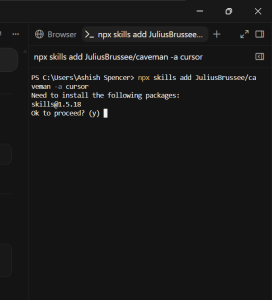
Install Prompt
Confirming the install prompt in PowerShell.
Next, you’ll be asked which skill variants to install:
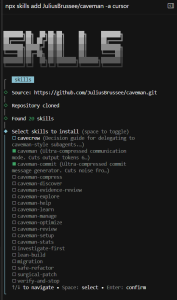
Skill Picker
Choosing which Caveman skill variants to install.
Then type /caveman at the start of a chat to turn it on. Four intensity levels: lite (drops filler only), full (default, terse fragments), ultra (bare minimum words), and wenyan (classical Chinese style, shorter still). Start with full; drop back to lite if it feels too clipped.
Four More Habits That Cost Nothing
- Describe, don’t paste. Copying a full error log in gets re-billed on every later reply; a 40K paste across 16 turns is 640K tokens, not 40K. Say what’s happening in a sentence or two instead, and start a fresh chat per problem.
- Auto mode by default. It covers roughly 90% of day-to-day coding. Save the heavier reasoning model for genuine architecture or system-design problems, not habit or vibe-coding.
- One chat, one workstream. One bug, one feature, one discussion per chat. Mixing topics adds noise that costs both tokens and answer quality.
- Summarize before it gets long. Past roughly ten messages, ask for a summary (or run
/summarize) and continue in a fresh chat. These habits together can cut token spend by 60-70% on their own.
RTK: Compress the Noise Before It Hits Context
Every time Cursor runs git status, ls, grep, or a test suite, the raw output floods straight into the context window. RTK (Rust Token Killer) auto-rewrites those commands and returns a compact summary instead, same signal, roughly 80% fewer tokens.
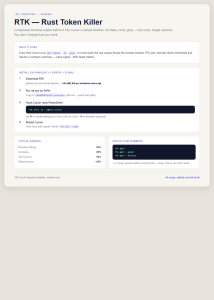
RTK
RTK at a glance: what it does and what it saves.
Install (Windows + Cursor): download the release from github.com/rtk-ai/rtk/releases, put rtk.exe on your PATH, then run:
rtk init -g --agent cursor
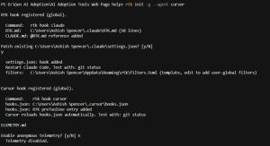
RTK Init
Output after running rtk init -g –agent cursor.
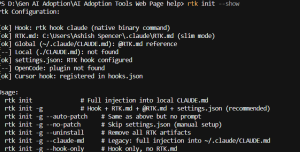
Restart Cursor fully, then verify with rtk init --show:
RTK-Verify
Verifying the setup with rtk init –show.
Typical savings: directory listings and git status both drop about 80%, test runners about 90%, roughly three times longer sessions before hitting a context limit. Check your own numbers any time with rtk gain.
Graphify: Give the Agent a Map, Not Just Files
Cursor reads files but doesn’t naturally see how they relate. Graphify parses your repo into a queryable knowledge graph, functions, callers, imports, tables, so the agent queries the graph instead of hunting file by file. On relationship questions like “what breaks if I change this schema?”, that’s roughly a 70x drop in tokens spent searching. Install with uv tool install graphifyy (double “y”), then graphify install, then /graphify . inside Cursor. It earns its keep most on unfamiliar repos and impact analysis before a risky change.
Handing Off Mid-Session: /handoff
When a session runs long, or someone else needs to pick up where you left off, type /handoff. Already live enterprise-wide, no setup needed. It writes a structured document covering what’s done, what’s open, key file paths, and known risks, saved outside the project so it never ends up in git. Redact secrets first, and point to file paths or PRs rather than pasting whole diffs.
A Few More Cursor Habits
- Use a .cursorignore file to keep node_modules and build output out of the index entirely.
- Scope context with @-mentions instead of letting the agent search the whole repo.
- Review changes in small batches rather than letting one huge diff pile up.
Same Discipline, Different Tool: ChatGPT Extends Three Ways
- Skills – reusable workflows, installed from the desktop sidebar, via Codex CLI, or
npx skills add -a codex. - Plugins – curated bundles of skills and connectors, browsed at chatgpt.com/plugins.
- Apps / Connectors – live integrations like SharePoint or GitHub, connected and authorized from the plugin directory.
For our setup: admins must enable plugins in Workspace settings before anyone can use them, RBAC decides who can use what, and Business/Enterprise data isn’t used for model training by default.
Skills Worth Installing Today
- PDF (official) – extract, merge, split, fill PDF forms.
npx skills add openai/skills@pdf -a codexor@skill-installer pdfin ChatGPT. Over 11,000 installs. - OCR Document Processor – scanned PDFs and images into structured text.
npx skills add dkyazzentwatwa/chatgpt-skills@ocr-document-processor - Document Converter Suite – converts between document formats, same repo.
- Data Storyteller – turns raw data into narrative summaries; good for analysts and PMs.
- Caveman – the same shorter-replies skill from above also works here:
npx skills add JuliusBrussee/caveman -a codex(runs in Codex, not regular web chat).
Connectors and Built-Ins
Admin-gated connectors best suited to a Microsoft-heavy stack: Microsoft 365 (SharePoint, OneDrive, Outlook, Teams), GitHub, Slack, Notion, and Zapier for cross-app automation. As of this year, Microsoft and Google connectors on Business/Enterprise plans also support write actions, drafting an email or creating a calendar event, not just reading.
Needing zero install or admin approval: Advanced Data Analysis (CSV/XLSX in, Python-backed charts out), ChatGPT Tasks (scheduled prompts), Search (live web with citations), and ChatGPT Agent (multi-step browse-and-assemble work).
Where to Start, and What to Skip
Four sensible starting points: the PDF skill for document-heavy work, OCR for scanned forms, the Microsoft 365 connector to stop re-uploading the same file into every chat, and Advanced Data Analysis as the zero-install quick win. Not worth chasing for a bank setting: niche tools like crypto technical-analysis skills, creative tools like Canva or Runway-style MCPs, and third-party MCP connectors generally, which are usually blocked unless IT has explicitly whitelisted them.
Quick Reference
- Cursor: Caveman for shorter replies · describe don’t paste · Auto mode by default · one chat per workstream · summarize before long · RTK to compress shell noise · Graphify for repo structure · /handoff to hand off cleanly
- ChatGPT: PDF, OCR, and Data Storyteller skills to install now · Microsoft 365 and GitHub connectors once admin-enabled · Advanced Data Analysis and Search need nothing at all
Same underlying advice either way: start with whatever’s free and solves something you’re doing manually this week, then layer in the tools that need setup once you’ve felt the difference.