


Patching Azure VMs from AWS Systems Manager using Hybrid Activation
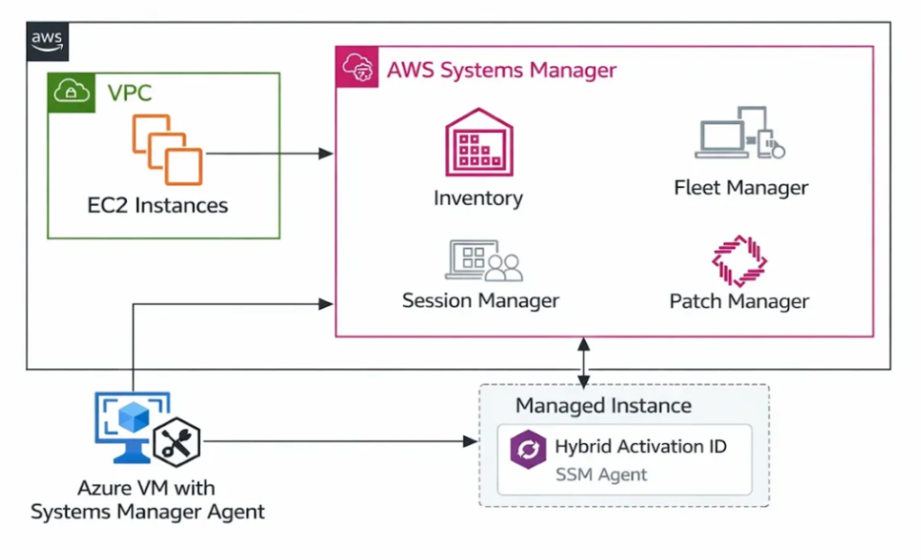
Each cloud platform provides its own native tools, which can lead to fragmented processes and increased administrative overhead. To address this challenge, AWS Systems Manager (SSM) offers a powerful solution through its Hybrid Activation feature. This capability allows non-AWS machines, such as Azure Virtual Machines (VMs), to be registered as managed instances within AWS.
Once registered, these Azure VMs can be managed centrally using AWS Systems Manager—just like Amazon EC2 instances—enabling streamlined patching, monitoring, and automation from a single interface.
This blog provides a step-by-step guide to patch Azure Virtual Machines using AWS Systems Manager through Hybrid Activation.
Pre-requisites
Before beginning the setup, ensure the following requirements are met:
- AWS Account Access
An active AWS account with sufficient permissions for:
AWS Systems Manager
IAM (Identity and Access Management)
Hybrid Activation - SSM Agent Installation Permissions
An IAM role with the policy:
AmazonSSMManagedInstanceCore attached - Server Access
SSH access for Linux VMs
RDP access for Windows VMs
Solution Architecture Diagram:
Step-by-Step Procedure:
Step 1: Create Hybrid Activation in AWS
To begin, we need to generate an Activation Code and Activation ID.
- Go to the AWS Console (https://ap-south-1.console.aws.amazon.com/systems-manager/home)
- Open AWS Systems Manager.
- In the left panel click:
Click Create activation.
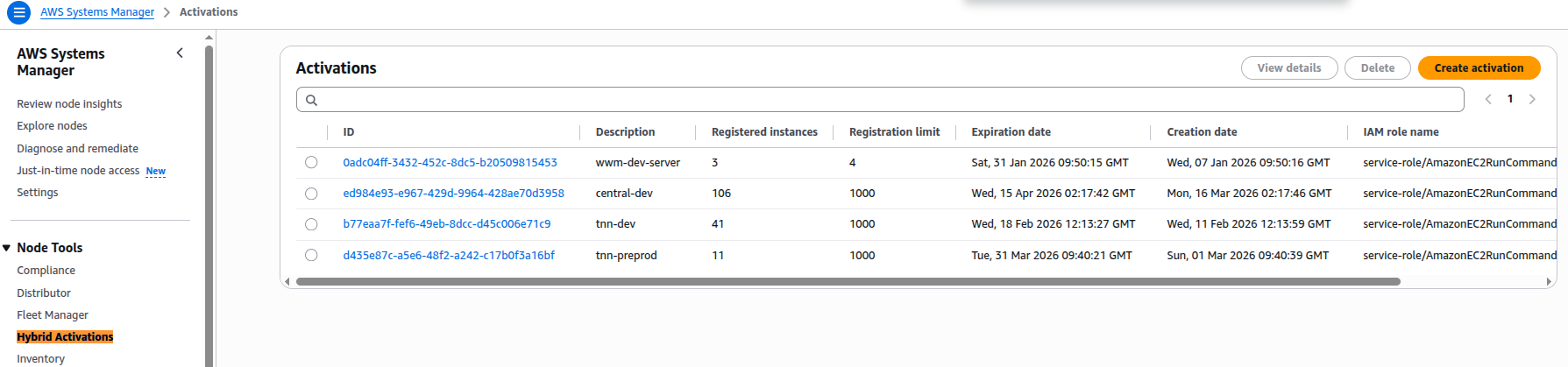
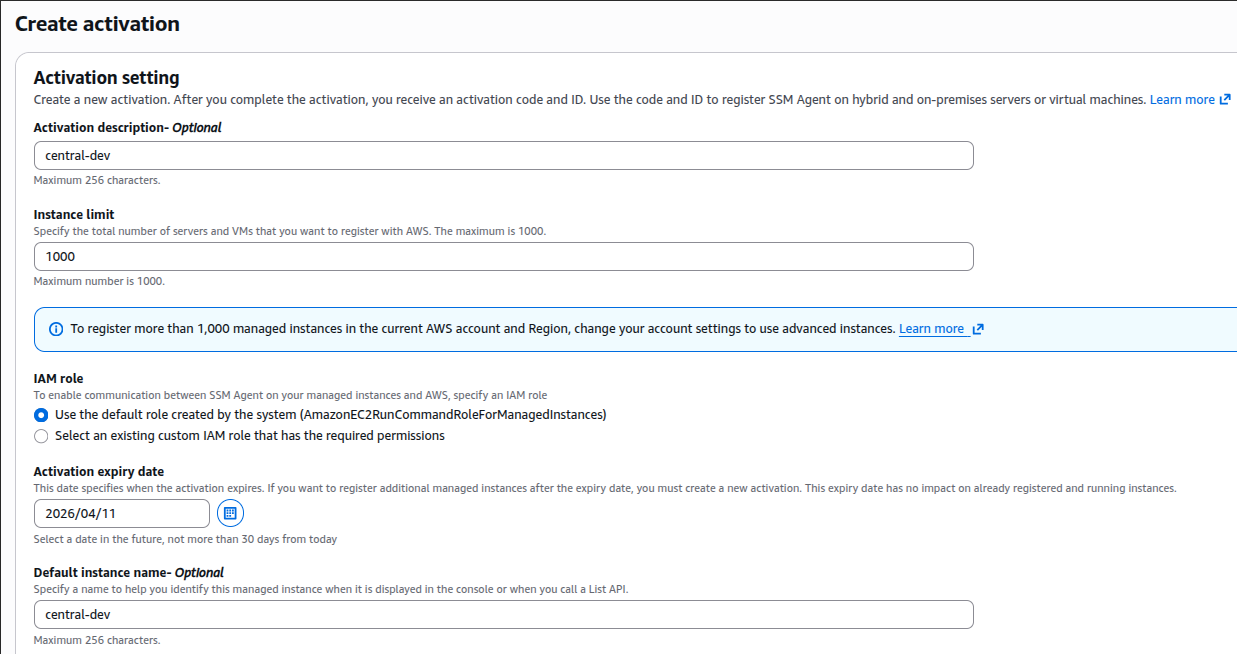
Note(Activation Expiry date): This date specifies when the activation expires. If you want to register additional managed instances after the expiry date, you must create a new activation. This expiry date has no impact on already registered and running instances.
After you have entered the details, click Create Activation, Activation-Code and Activation-ID will be created.
Save this info, as it will be not generated again:

Step 2: Script to Install SSM Agent on Azure Virtual Machines
To enable AWS Systems Manager integration, install and register the SSM Agent on each Azure VM.
Below is a script (bulk_ssm_install.sh) that:
Downloads the SSM Agent
Installs it
Registers the VM with AWS Systems Manager
After running this script, the machine (for example an Azure VM) will appear in AWS Systems Manager as a Managed Instance.
| #!/bin/bash
set -e echo “➡ Downloading Amazon SSM Agent package…” echo “➡ Installing Amazon SSM Agent…” echo “➡ Enabling amazon-ssm-agent service…” echo “➡ Registering SSM Agent…” echo “➡ Restarting SSM Agent…” echo “✔ SSM Agent installation & registration completed successfully” |
Step 3: Automating Installation Across Multiple VMs
To install the SSM Agent on multiple Azure VMs, follow these steps:
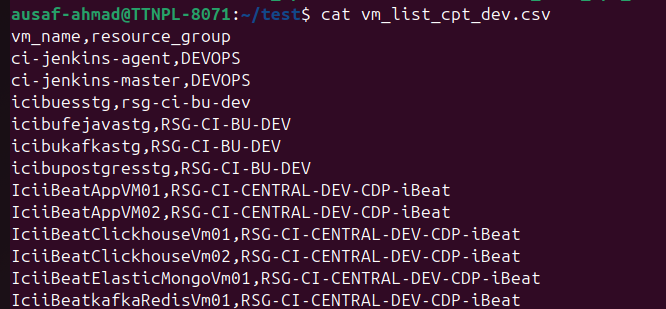
1. Create a CSV File
Prepare a file (vm_list_cpt_dev.csv) with VM details.
Note: The vm_list_cpt_dev.csv file will be like below format:
| vm_name,resource_group vm1,rg1 vm2,rg2 |
2. Bulk installation using below Automation Script
Below automation script (run_updates.sh) reads the CSV file and executes the installation script on each VM using Azure CLI.
This script reads VM list csv file and executes (bulk_ssm_install.sh) on each VM. This enables bulk deployment of the SSM Agent across multiple Azure VMs efficiently.
| #!/bin/bash
SCRIPT_FILE=”bulk_ssmvm_install.sh” if [ ! -f “$SCRIPT_FILE” ]; then while IFS=, read -r vm rg |
Step 4: Resolve Common Patching Errors
During patching, issues such as dpkg errors or sudoers misconfiguration may occur on some VMs.
To address these, use the following script (patching_error.sh):
| #!/bin/bash
set -e dpkg –configure -a |
Step 5: Set Azure Subscription Context
If your Azure account contains multiple subscriptions (e.g., Dev, Test, Production), set the correct subscription before executing scripts:
Azure accounts can have multiple subscriptions. This command tells Azure CLI which subscription you want to patch with before running other defined scripts.
| az account set –subscription “SUBSCRIPTION_NAME” |
This helps stabilize the system before initiating patch operations. You will get the error on VM while doing scan only on AWS patch manager.
Step 6: Register Azure VMs in AWS Systems Manager
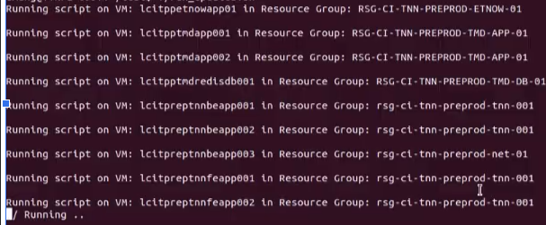
Since all script setup has been done, now execute run_updates.sh to start the VM registering process:
./run_updates.sh
This will:
Install the SSM Agent
Register Azure VMs as Hybrid Managed Instances
Make them visible in AWS Systems Manager
Perform Patch Scan or Patch Installation on Azure VMs:
Now all the VMs are registered on AWS Systems Manager as Managed Nodes:
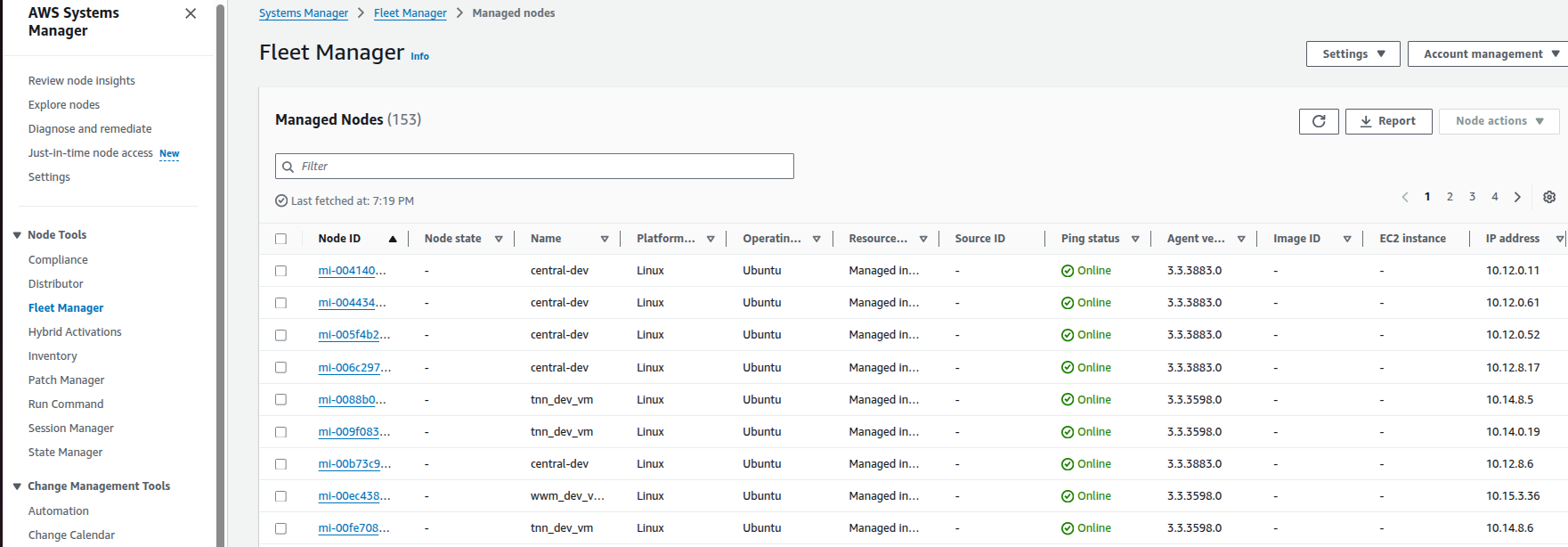
Once your Azure VMs are registered in AWS Systems Manager as Hybrid Managed Instances, you can use Patch Manager to check for missing patches and apply updates. This step covers how to perform patch scanning only and after that patch installation.
Step 7: Perform Patch Scan
How to Run Patch Scan:
Open AWS Systems Manager Console
Navigate to Patch Manager
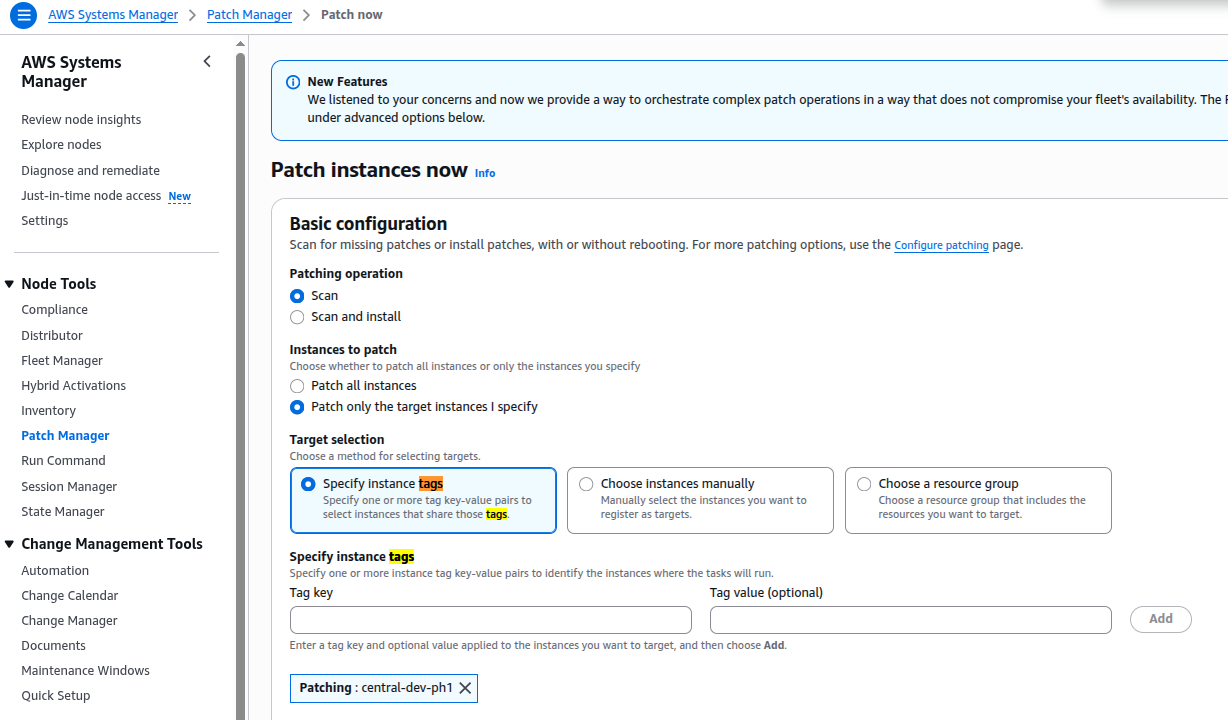
Click “Patch Now”
Select Operation Type: “Scan” and choose the option to Scan only. This will run a patch compliance check without applying patches.
Choose Target Instances i.e. select your registered Azure VMs by instance ID or by resource group tag (if you set one). If selecting Tag, then need to first apply tags on all VMs registered in AWS System Manager:
Step 8: Start the Scan and Go to Systems Manager:
Monitor execution via:
Run Command
Patch Compliance Dashboard
This provides visibility into patch status and compliance levels.
Step 9: Patch Scan and Install (Apply Patches)
This option scans the Azure VM for missing patches and then installs them automatically.
Navigate to Patch Manager
Click Patch Now
Select Operation Type: Scan and Install
Choose target instances
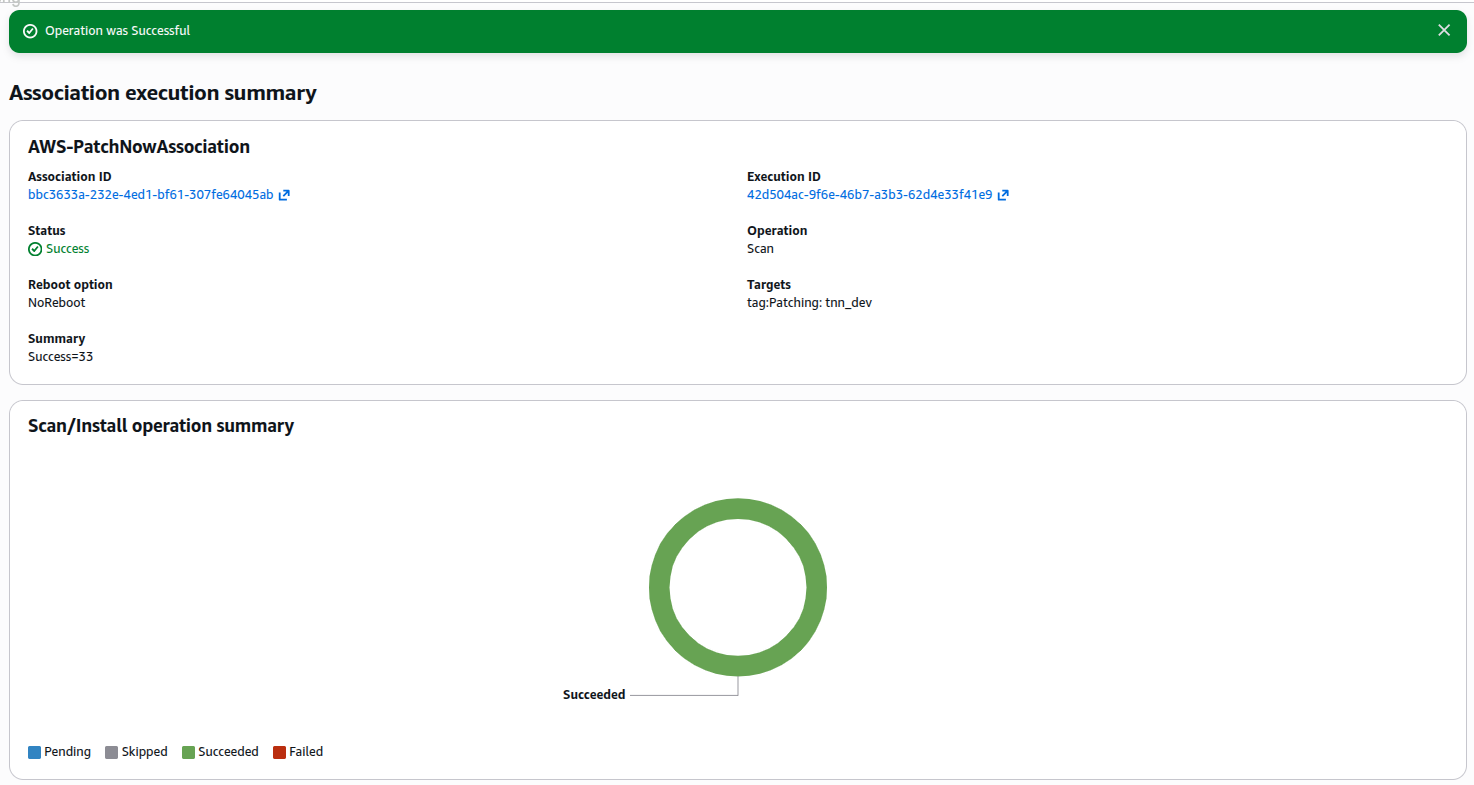
Execute the operation, once completed, it will show the status:
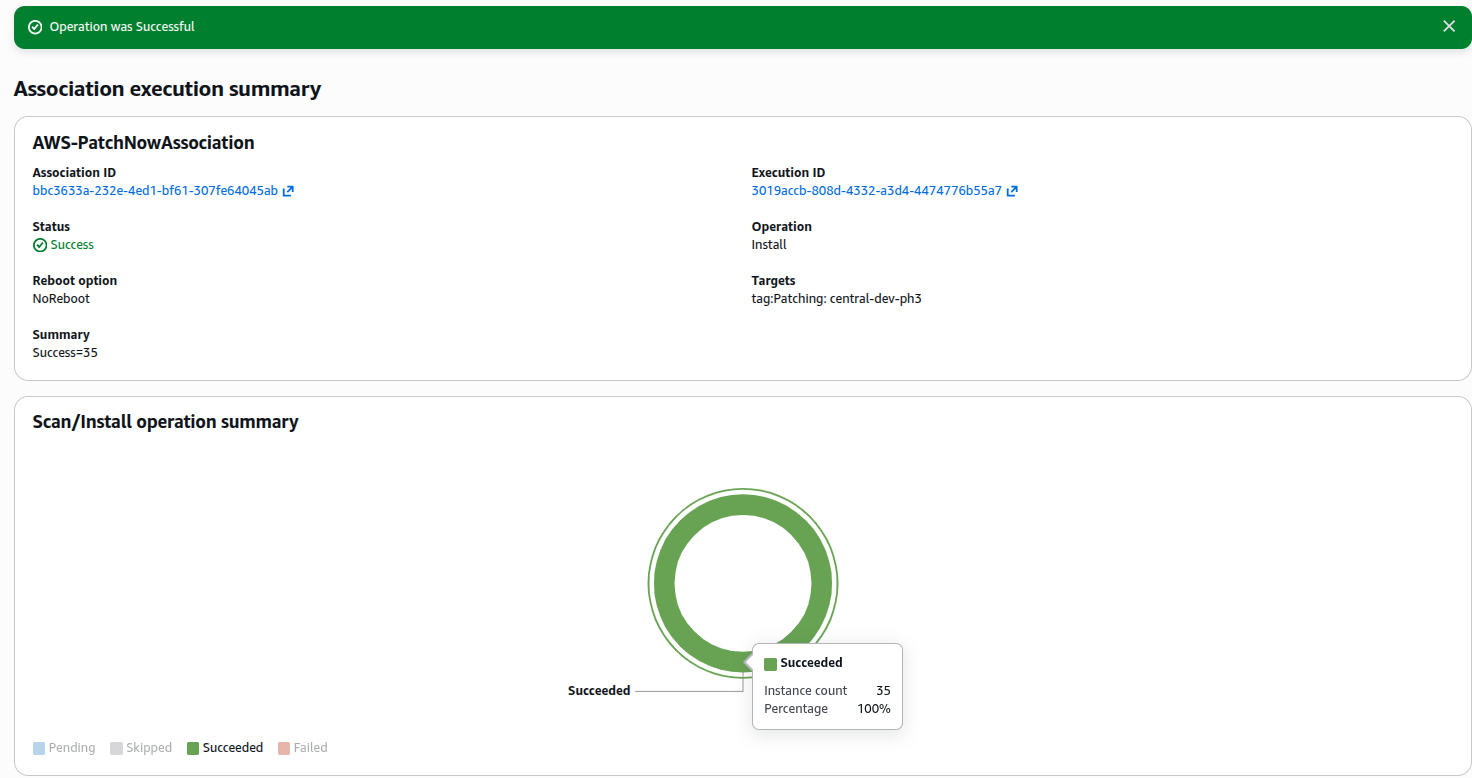
NOTE:
Monitor the patch job status in Systems Manager > Run Command or Patch Compliance. Review detailed reports on which patches were installed successfully or if any failed.
Step 10: Stop/Start of VM:
Once patching is completed, Stop/Start the VMs for complete patch application, system stability.
Conclusion
By leveraging AWS Systems Manager Hybrid Activation, organizations can effectively manage and patch Azure Virtual Machines from a centralized platform. This approach reduces operational complexity, enhances consistency, and simplifies multi-cloud infrastructure management. Implementing this solution enables:
Unified patch management
Improved compliance visibility
Reduced manual intervention