


Introduction
iPhone Duo is the first iPhone that folds. It has a 5.4-inch outer display, a 7.6-inch inner display, Split View, and a hinge that can stop halfway. For most apps, that means a few layout fixes. For a streaming app, it means the screen can change size, shape and even display while a video is playing.
A user can start a match on the outer display, open the phone mid-stream, prop it half-folded on a table, then drag a chat app beside it. The video must keep playing through all of it. In this blog, I’ll list every state a video player has to handle on iPhone Duo and show how to handle each one in SwiftUI with the iOS 27.1 SDK.
Prerequisites
- Xcode 27.1 with the iOS 27.1 SDK.
- Device Hub in Xcode, which simulates every pose: open, closed, rotated and folded.
- A SwiftUI player screen built on
AVPlayer. - Sample project (optional, to follow along): IphoneDuo on GitHub.
The states your player must handle
StateWhat changesWhat the player should doClosed, portraitOuter display.Closed, landscapeOuter display.Open, flatInner display.Partially foldedThe fold becomes an active region across the inner display.Display switchOpening or closing moves the app to the other display.Split ViewThe app gets one side of the inner display.Two windowsTwo scenes of your app, on the inner display only.
| Compact width, regular height. | Normal phone layout: video on top, details below. | |||
| Compact width and height. | Full-screen video. | |||
| Regular width and height in both rotations. | Video beside or above a second pane, such as Up Next. | |||
| Video on one half, controls on the other. Nothing across the fold. | ||||
| Keep playing. Only the layout changes. | ||||
| Safe areas differ on each side. | Fall back to the compact layout. | |||
| One player per window, and one clear owner of audio. |
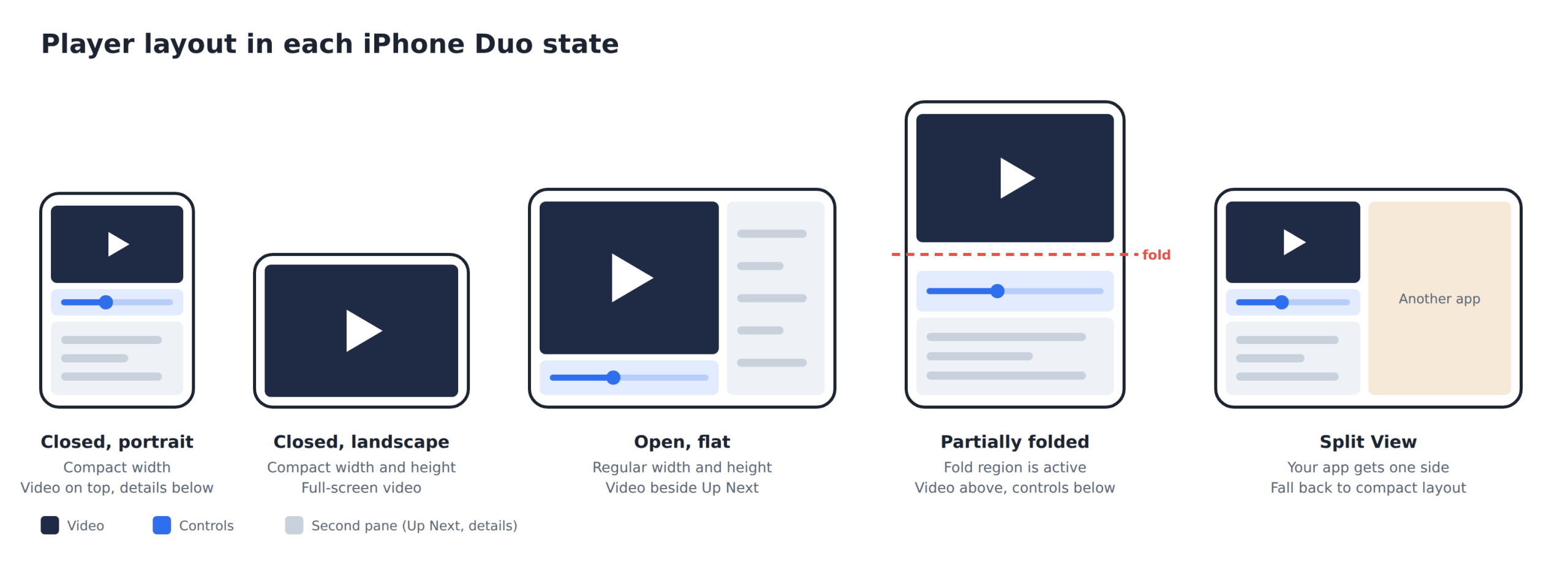
Figure 1: The player layout in each state. Click to enlarge.
The inner display has one more surprise: it does not honour supportedInterfaceOrientations. You can’t lock the player to landscape there, so the layout has to come from size classes.
Rule 1: Keep the player out of the view
Every state change above rebuilds views. If a view owns the AVPlayer, a fold restarts the stream. So the player lives in an object that layout never touches:
@MainActor @Observable
final class PlaybackController {
    let player = AVPlayer()

    func load(_ url: URL) {
        player.replaceCurrentItem(with: AVPlayerItem(url: url))
        player.play()
    }
}

struct PlayerRoot: View {
    @State private var playback = PlaybackController()   // one per window

    var body: some View {
        PlayerScreen()
            .environment(playback)
    }
}
Because PlayerRoot sits at the top of the scene, each window gets its own controller. That also covers the two-window state.
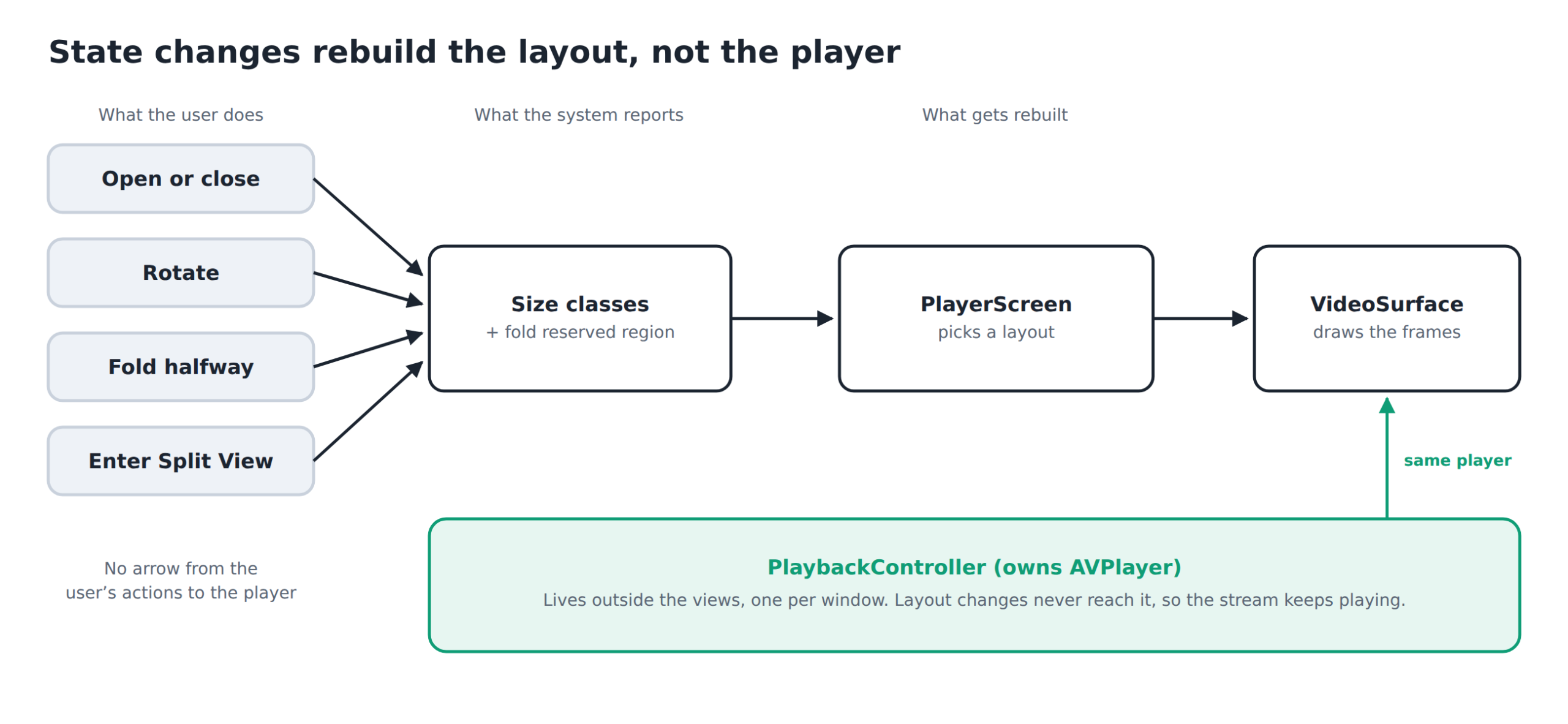
Figure 2: State changes rebuild the layout. The player sits outside and keeps playing.
Rule 2: Lay out from size classes, not from the device
Don’t check for “is this a Duo” or read the orientation. Size classes already describe every state in the table:
struct PlayerScreen: View {
    @Environment(.horizontalSizeClass) private var hSize
    @Environment(.verticalSizeClass) private var vSize
    @Environment(PlaybackController.self) private var playback

    var body: some View {
        if hSize == .regular && vSize == .regular {
            // Open, flat or folded
            ArrangementView {
                VideoSurface(player: playback.player)
            } secondary: {
                UpNextView()
            }
            .arrangementViewStyle(.split)
        } else if vSize == .compact {
            // Closed, landscape
            VideoSurface(player: playback.player)
                .ignoresSafeArea()
        } else {
            // Closed portrait, or a narrow Split View
            CompactPlayerLayout(player: playback.player)
        }
    }
}
ArrangementView is new in iOS 27.1. With the .split style, it places the two views side by side when the space is wider than tall and stacks them when it is taller than wide. If there isn’t room for both, it shows only the primary view, so the video always wins. Two limits to remember: don’t put it inside a ScrollView or List, and don’t put a NavigationSplitView inside it.
Rule 3: Respect the fold
When the phone is partially folded, the hinge line cuts through the inner display. A video frame or a seek bar that crosses it is hard to see. The system reports the fold as a reserved region, and it is active only while the device is folded:
GeometryReader { proxy in
    let fold = proxy.reservedRegions(kind: .division).first?.frame

    if let fold {
        // Propped on a table: video above the fold, controls below
        VStack(spacing: 0) {
            VideoSurface(player: playback.player)
                .frame(height: fold.minY)
            Color.clear.frame(height: fold.height)
            PlayerControls()
        }
    } else {
        FlatPlayerLayout()
    }
}
This gives the “tabletop” layout: the top half is for watching from a distance and the bottom half is for touch controls.
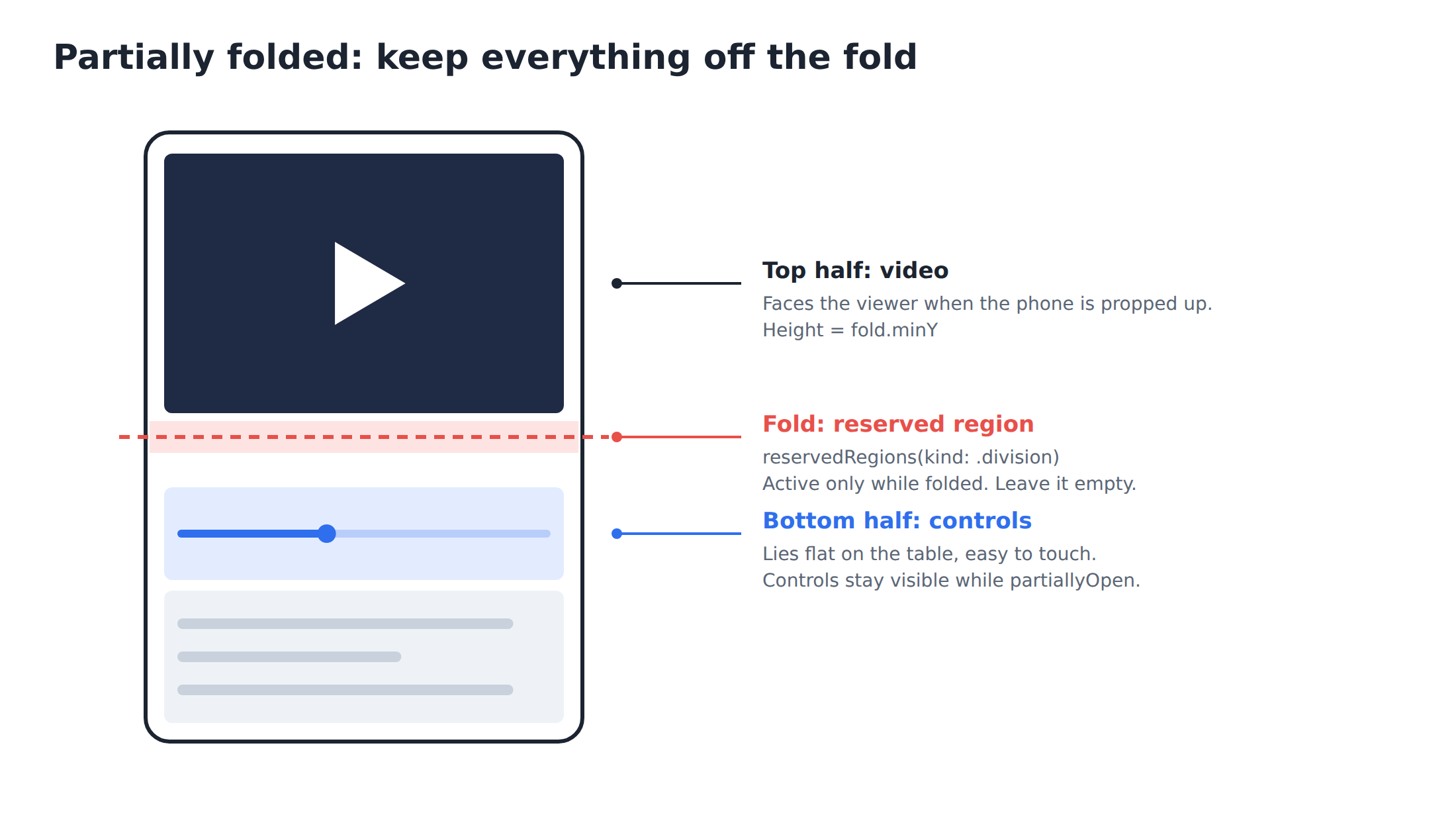
Figure 3: The tabletop layout. Nothing crosses the fold.
Rule 4: Use the hinge for behaviour, not layout
The hinge has its own API, with a status of closed, partiallyOpen or fullyOpen, and a continuous angle. Use reserved regions for layout, and keep the hinge for behaviour. For example, when the phone is propped up, nobody is holding it, so controls should not auto-hide:
.onHingeChange { _, context in
    guard let hinge = context.hinge else { return }   // nil on iPhones without a hinge
    controls.autoHide = hinge.status != .partiallyOpen
}
In UIKit, the same data comes from UIHingeInteraction.
Split View and two windows
Split View is the first time two apps sit side by side on an iPhone. Every app takes part automatically, so your player will be resized whether you planned for it or not. Two things matter:
- Safe areas are not symmetric. The system bar can sit on the left or the right of your app. Inset each side by its own safe area, and test by dragging the app to both sides.
- New windows exist only on the inner display. If you offer “open in new window”, use
UIWindowSceneActivationAction, which hides itself when a new window isn’t possible, and handle the error when a scene request fails.
With two windows, two players can run at once. Decide which window owns the audio, and mute or pause the other.
Mistakes to avoid
UIScreen.main. It is ambiguous on a phone with two displays. Usewindow?.windowScene?.screen, andtraitCollection.displayScalefor scale.UIDevice.orientationand orientation locks. They don’t describe the inner display.- Hinge angle for layout. Reserved regions tell you where the fold is. The angle doesn’t.
- Hard-coded video sizes. The inner display is close to square, so a 16:9 video leaves real space. Fill it with something useful.
Testing checklist
- Start playback closed, then open the device. The stream must not restart.
- Fold halfway in both rotations. Nothing should cross the fold.
- Drag the app to the left and the right side of Split View.
- Open a second window and check which one plays audio.
- Repeat with Picture in Picture and background audio.
Sample project
A working sample of everything above is on GitHub: https://github.com/mukulsharma211/IphoneDuo. It is a small SwiftUI app with one player screen and a list of HLS, fMP4 and live streams. A single PlaybackController owns the AVPlayer, and the layout comes only from size classes and the fold region.
To try it, open the project in Xcode 27.1, run it on the iPhone Duo simulator, then use Window > Device Hub to close, open, rotate and fold the device while a video plays. The README lists the expected layout for each state.
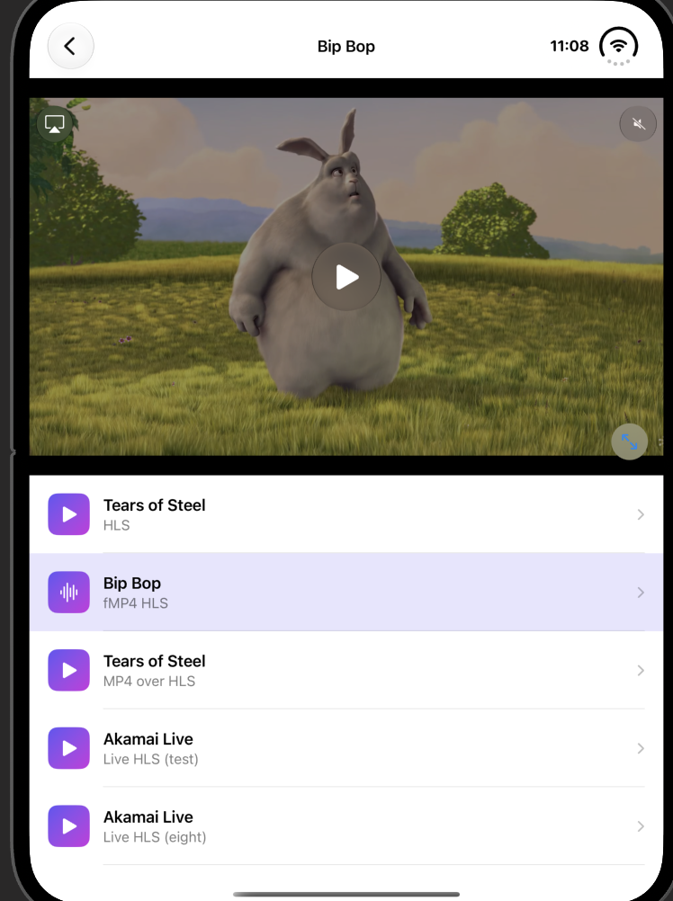
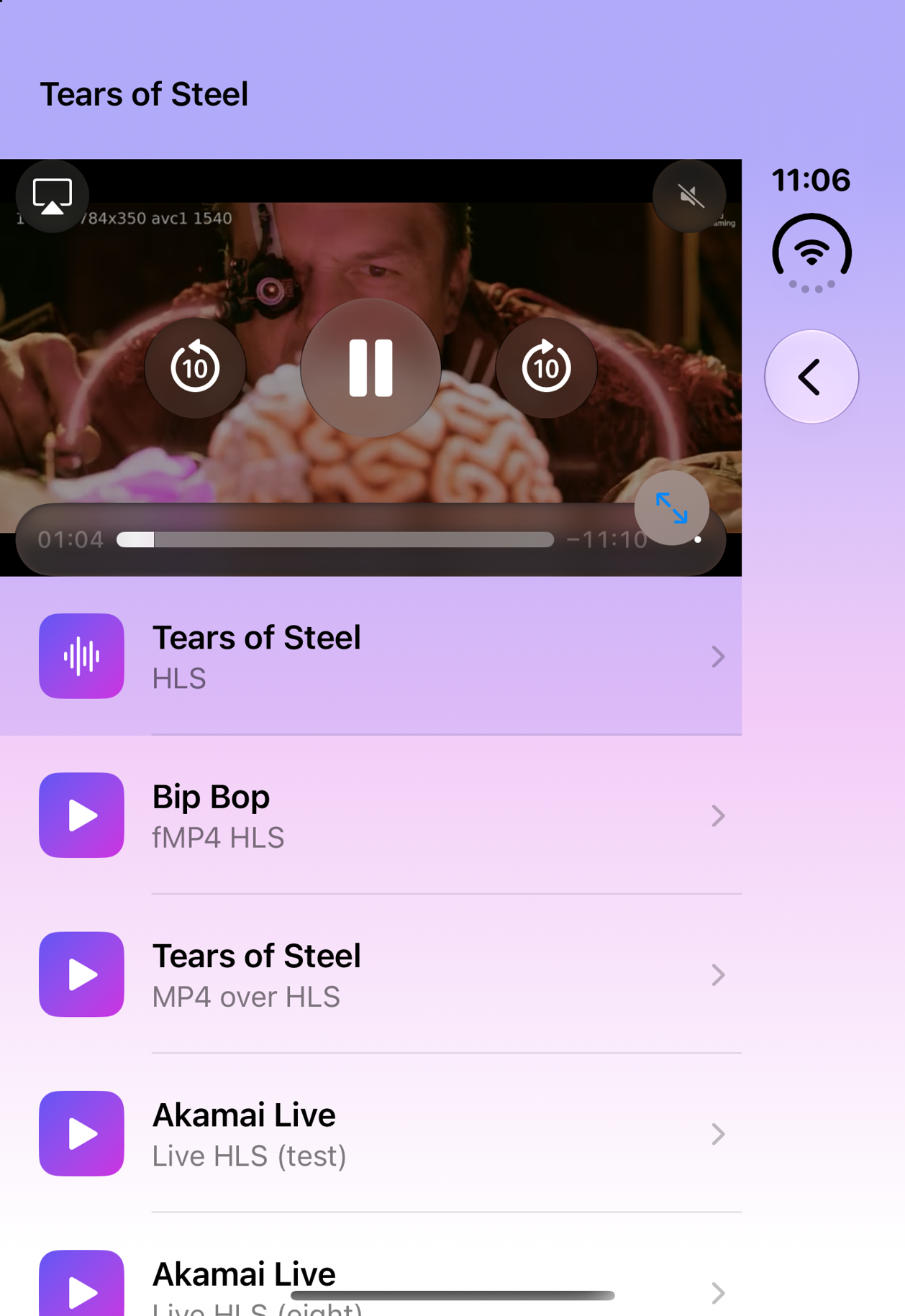
Figure 4: Closed, portrait (left) and open with the player stacked above the list (right).
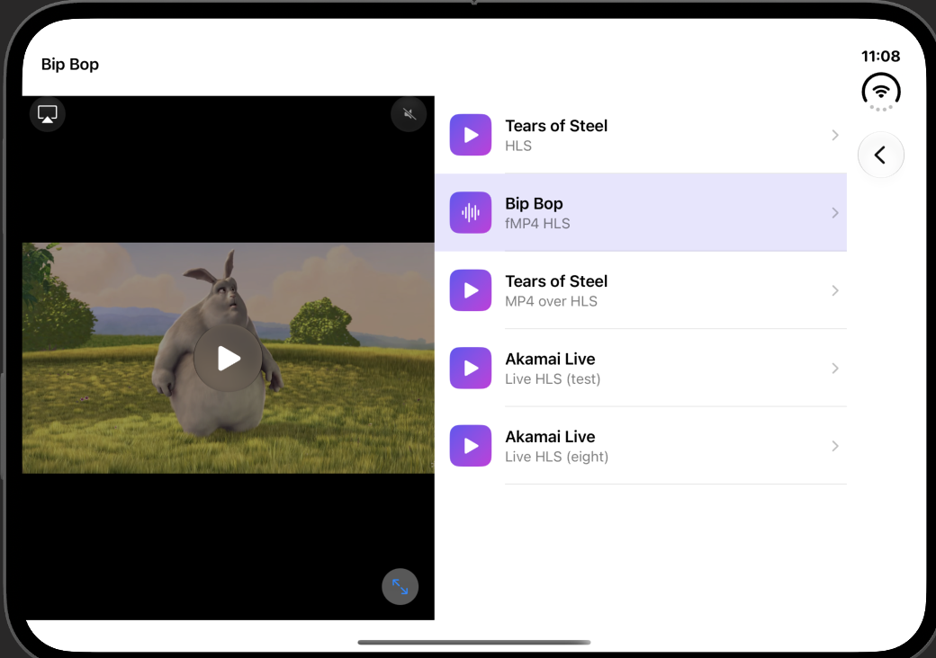
Figure 5: Open, flat: player and Up Next list side by side.

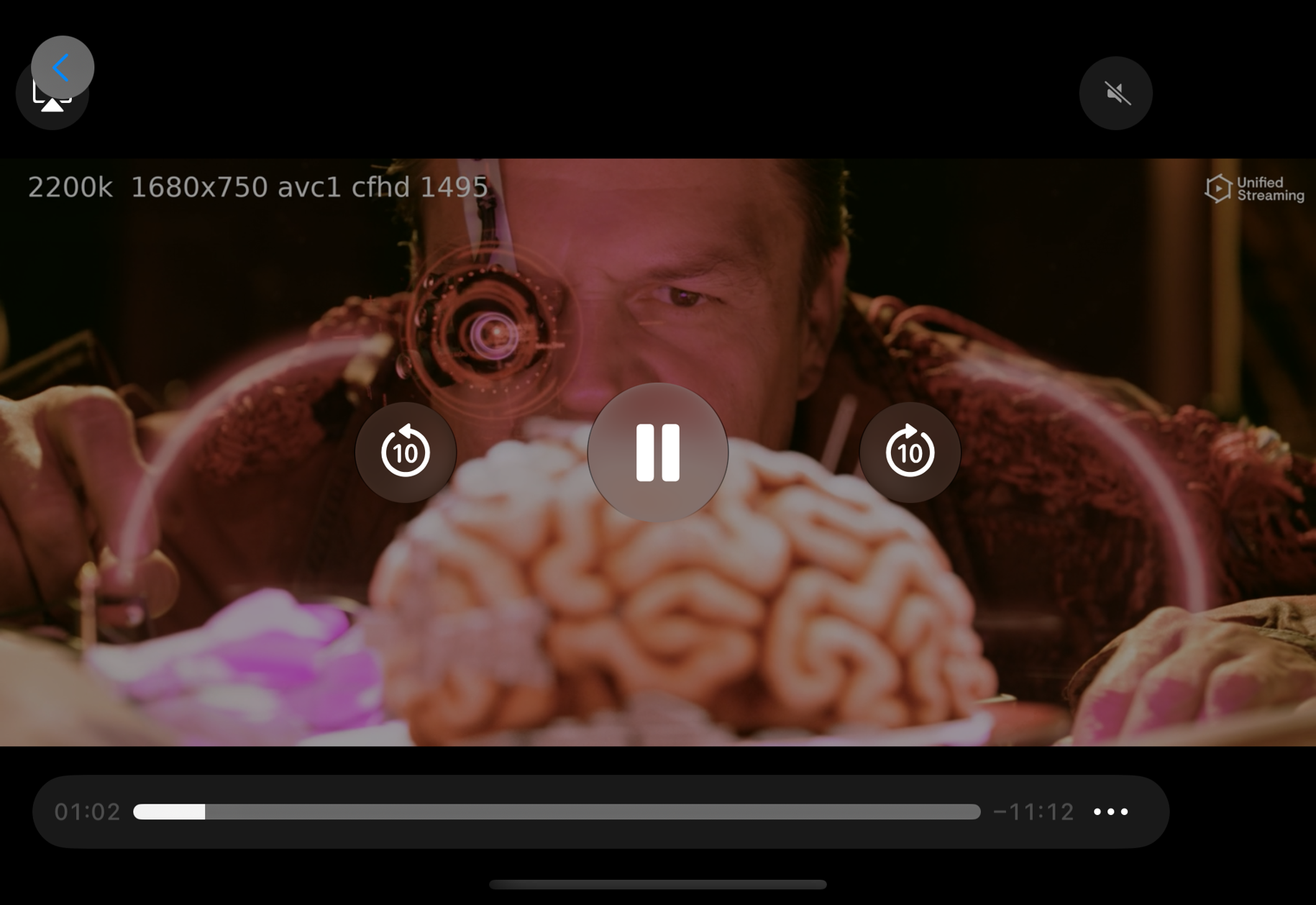
Figure 6: Full-screen playback, with controls hidden and shown. Playback keeps its position across every switch.
Conclusion
iPhone Duo adds many states, but they reduce to four rules: keep the player outside the view, lay out from size classes, keep content off the fold, and use the hinge only for behaviour. A player built this way doesn’t need to know it is running on a Duo. It also behaves better on iPad and in every resizable window, which is where Apple’s platforms are heading. For more detail, watch Apple’s tech talks: Prepare your app for iPhone Duo, Strike a pose with adaptive layouts and Leverage multiple displays and scenes.