


Introduction
Keeping your app users up-to-date instantly is easier than ever with Stallion, a powerful tool for Over-the-Air (OTA) updates in React Native. Forget waiting for app store approvals; push updates directly to your users with zero friction. 🙌
Why Use Stallion?
✅ Built-in Testing Framework to validate updates before production
🔁 Switch Between App Versions without rebuilding native code
📦 Publish Bundles Instantly using Stallion CLI
📲 Apply Updates In-App using the Stallion SDK
🔄 Manual + Automatic Rollbacks with real-time rollback insights
📊 Detailed Analytics for update adoption and performance tracking
🏷️ Extensive Free Plan for indie devs and small teams
✅ Production-Ready and trusted by teams shipping millions of updates
Step 1: Set Up Your Stallion Account
To get started with Stallion, you’ll first need to create a free account and set up your project.
Create Your Stallion Account
- 👉 Go to the Stallion Dashboard
- Sign up or log in to your account.
Create a New Project
Once you’re signed in, you’ll be guided through the process of creating your first project.
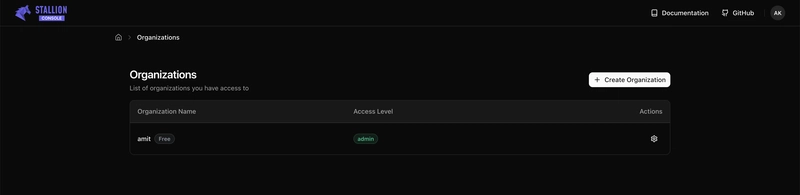
Dashboard View
You’ll land on the dashboard after logging in:
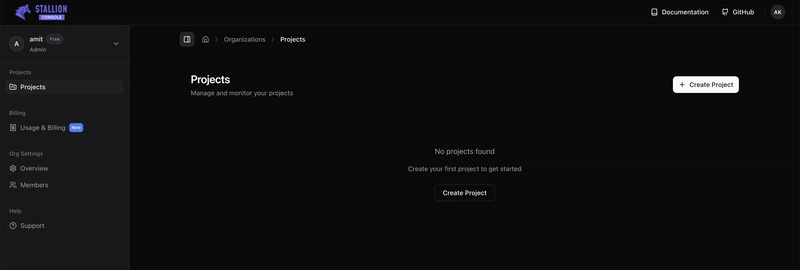
Click “Create Project”
Hit the “Create Project” button to get started:
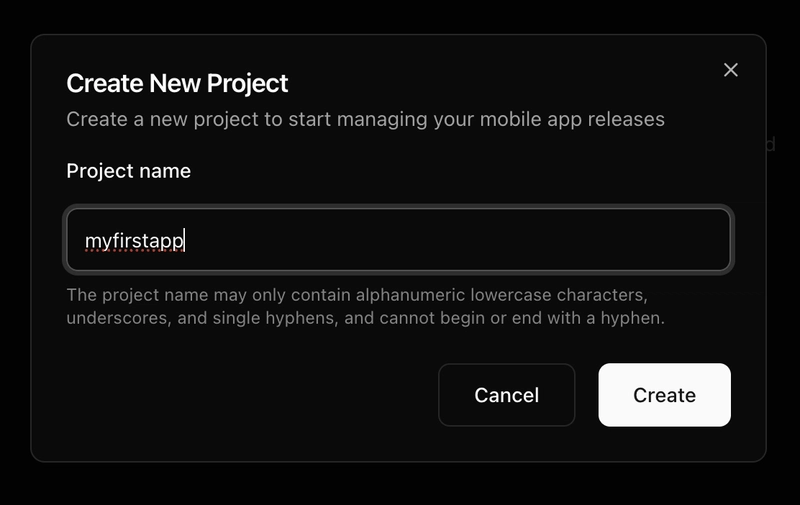
Fill in Your Project Details
Enter your project name and description, then click “Create”:
Project Details
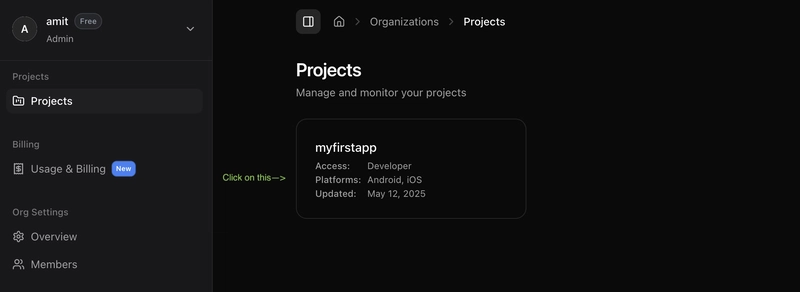
Project Successfully Created
You’ll now see your new project listed in the dashboard, Now Click on the project card to proceed.
Project Successfully
🗂️ Create a New Bucket
Now, let’s set up a storage bucket for your project.
Bucket View – Click “Create Bucket”
Navigate to the Buckets section and click on “Create Bucket”:
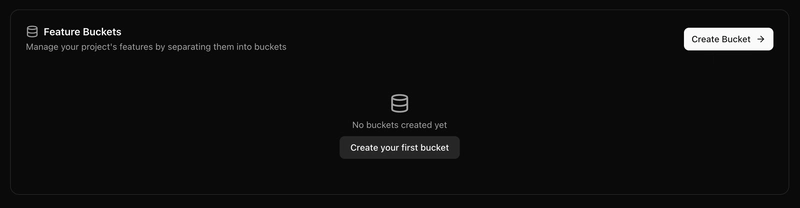
Create Bucket
Create New Bucket
Fill in the necessary details to create your new bucket:
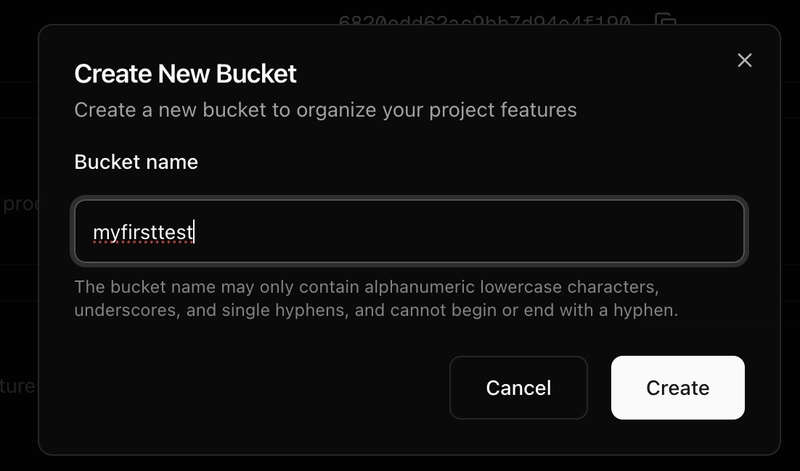
details to create your new bucket
You’re now ready to start integrating your application with Stallion! 🎉
Step 2: Install the Stallion CLI
Install the CLI to interact with Stallion from your terminal.
Using npm
npm install –save-dev stallion-cli
using Yarn
yarn add -D stallion-cli

Install the CLI
📲 Step 3: Install the Stallion SDK
Add the Stallion SDK to your React Native project:
Using npm
npm install react-native-stallion
using Yarn
yarn add react-native-stallion

Stallion SDK
Then, install CocoaPods for iOS:
npx pod-install
Step 4: Configure Native Projects
🤖 Android Configuration
ℹ️ For React Native < 0.76
In MainApplication.java, update getJSBundleFile:

MainApplication
ℹ️ For React Native > 0.76
In MainApplication.kt, update the reactNativeHost:

MainApplication
🍎 iOS Configuration
ℹ️ For React Native < 0.76
In AppDelegate.mm, update the sourceURLForBridge method:

AppDelegate
ℹ️ For React Native > 0.76
In AppDelegate.swift, update the bundleURL() method:

AppDelegate
🔐 Step 5: Add Project ID and App Token
Add your Stallion credentials to platform-specific config files.
iOS (Info.plist):
Add below code on Info.plist file
<key>StallionProjectId</key>
<string>your_project_id</string>
<key>StallionAppToken</key>
<string>your_app_token</string>
Android (res/values/strings.xml):
Add below code on strings.xml file
<string name=”StallionProjectId”>your_project_id</string>
<string name=”StallionAppToken”>your_app_token</string>
You can generate your app token in the Stallion dashboard:
Click on Generate App Token button in order to get app token
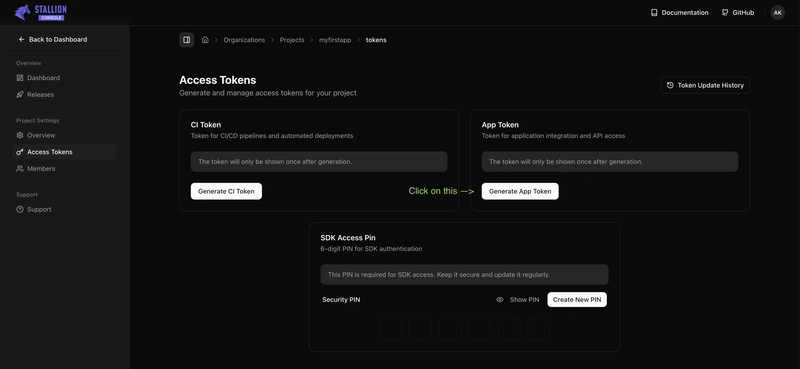
Generate App Token
🔍 Find your Project ID and App Token under Project Settings in the Stallion Dashboard.
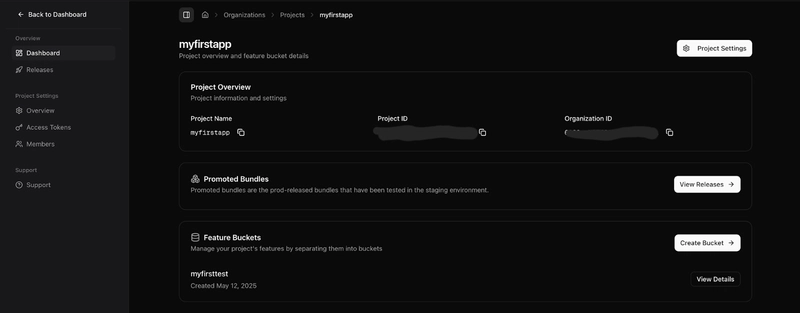
Dashboard
🧵 Step 6: Wrap Your App Component
In your App.js or App.tsx, wrap your root component with the withStallion HOC:
import { withStallion } from ‘react-native-stallion’;
// rest of your code
export default withStallion(App);
Step 7: Create a Release Build
Install the build on a device or emulator to test.
Step 8: Make a Code Change
Modify your app’s logic or UI—for example, update some text—and save your changes.
Step 9: Publish the OTA Update
1. Login to Stallion CLI:
npx stallion login
This will open a browser window for authentication. Once logged in, copy and paste the token back into your terminal.
2. Publish the update:
Use the appropriate command below to publish your update for Android or iOS.
🤖 Android Command
npx stallion publish-bundle \
–upload-path=orgname/project-name/bucket-name \
–platform=android
🍎 iOS Command
npx stallion publish-bundle \
–upload-path=orgname/project-name/bucket-name \
–platform=ios
🔍 Replace orgname, project-name, and bucket-name with your actual values.
Or use “Copy Bundle Path” from the dashboard in order to get the orgname/project-name/bucket-name:
Step 10: Promote and Release the Bundle
Follow these steps to promote your Android (and iOS) bundle from staging to production.
Step 1: Access the Bundle Details
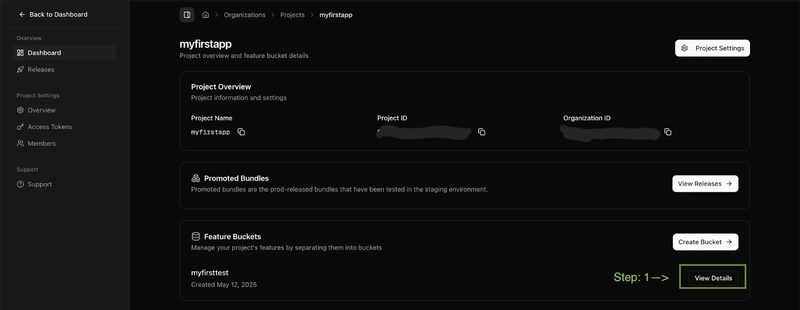
Bundle Details
Step 2: Open the Android Bundles Tab
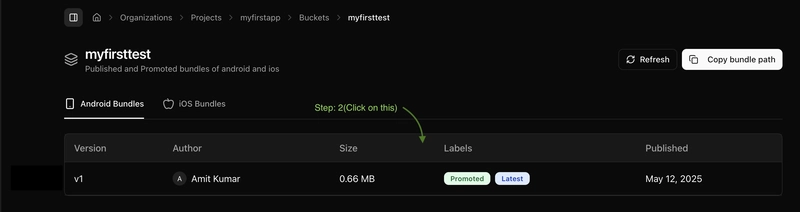
Android Bundles
Step 3: Add Release Notes and Promote
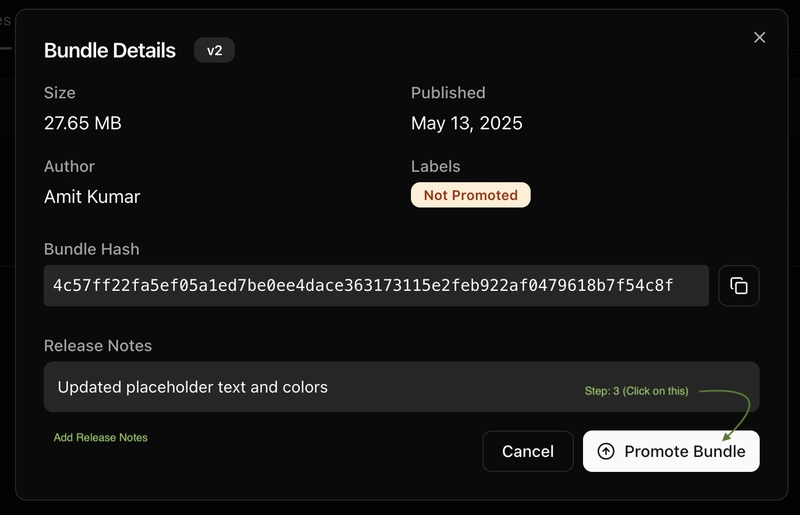
Promote
Step 4: Select Target Version & Finalize Promotion

Finalize Promotion
Step 5: Manage the Release
Once promoted, click on the Manage Release button.
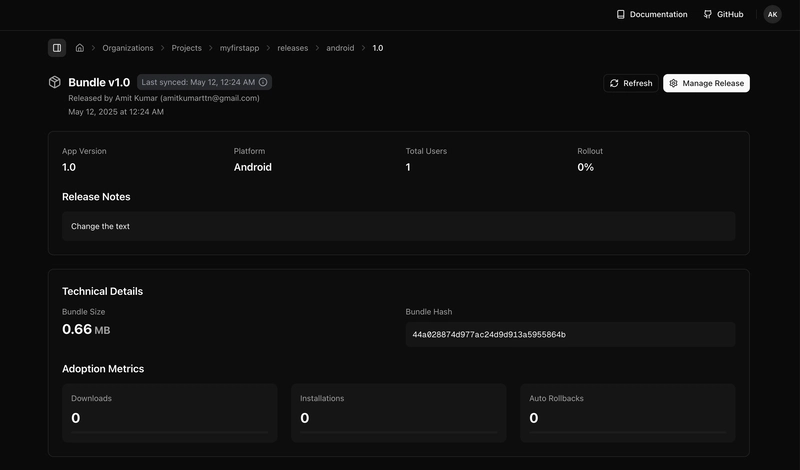
Manage Release
Step 6: Publish to Production
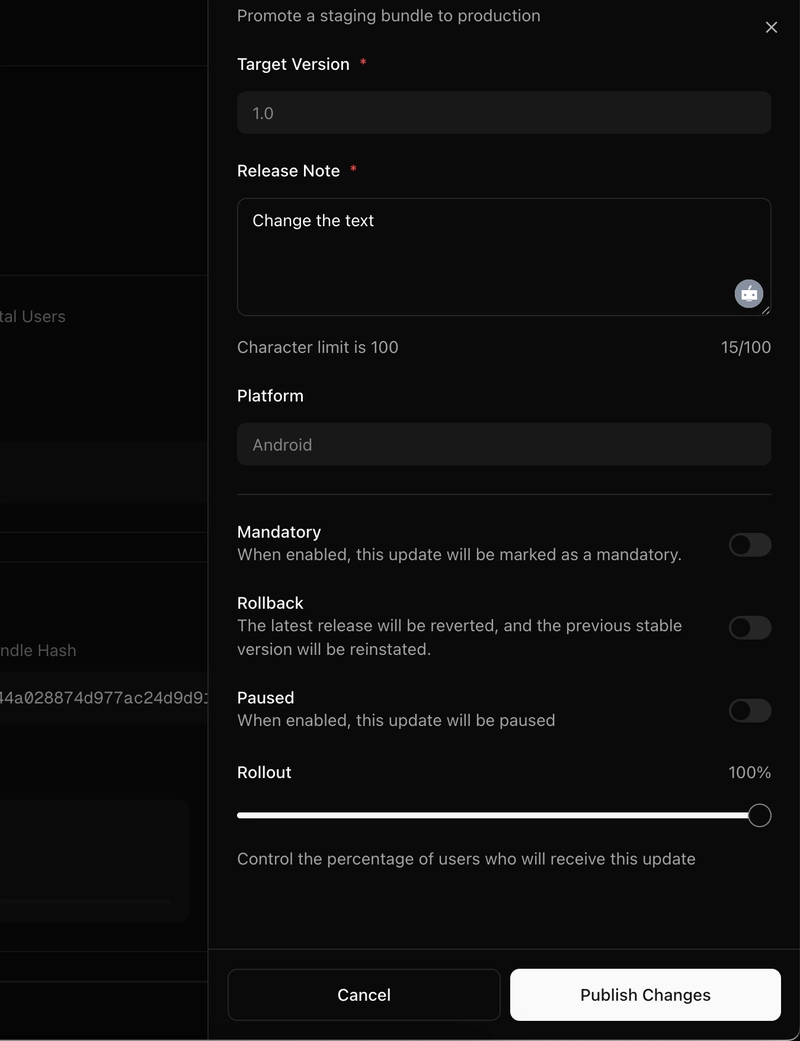
Publish to Production
🍎 The same steps should be followed for iOS as well.
🎉 All Done!
Your bundle has been successfully promoted and released.
- To view the latest changes in the app:
- Kill (close) the app completely, then
- Reopen the app to load the updated JS bundle.
- This ensures the latest changes are reflected properly.🔁 If not, try staying in the app for at least a minute before closing it. Then reopen it — your changes should now be visible.
✅ Final Thoughts
Stallion makes the OTA update process seamless and efficient. With minimal setup and a powerful CLI, you can roll out bug fixes, feature updates, or UI tweaks instantly—keeping your app fresh and users happy.
Ready to streamline your React Native deployment?
Start using Stallion today and revolutionize your mobile development workflow.