


Introduction
AppMeasurement.js is Adobe’s original JavaScript library for client-side Adobe Analytics tracking. It has been the backbone of Adobe Analytics implementations for well over a decade and remains widely deployed across enterprise websites and applications today.
This article will cover step by step guide to implement analytics tracking using Adobe Launch (Tags) and AppMeasurement.js library.
Implementation Steps using App Measurement
Note: This blog will just cover some specific part of implementation around the Adobe Analytics extension and not the steps to create data elements, rules etc. as they are not in scope of this blog.
Steps to track data using App Measurement Extension
- You need to configure Adobe Analytics Extension. Mention the report suites, global variables, OOTB link tracking etc.
- Adobe Documentation: https://experienceleague.adobe.com/en/docs/experience-platform/tags/extensions/client/analytics/overview
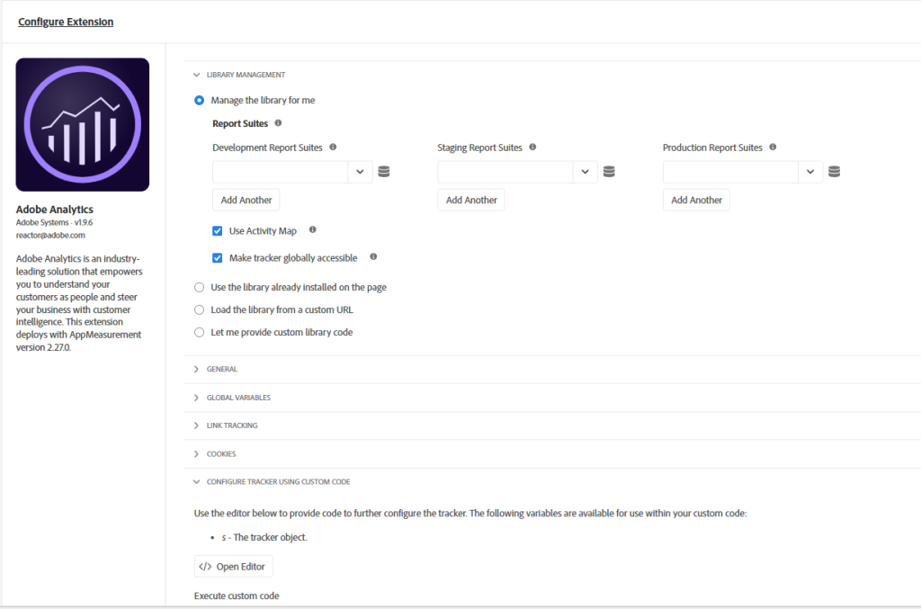
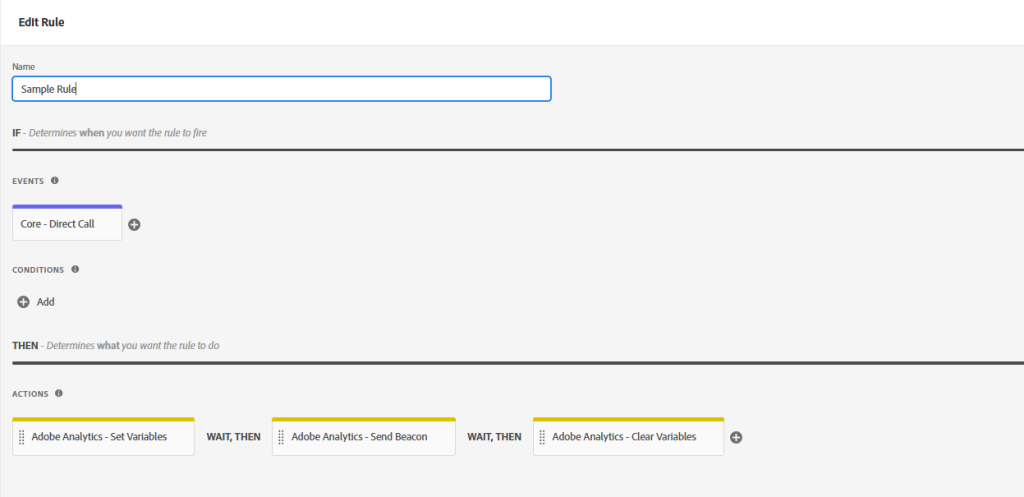
- You then need to create a rule to populate the variables and select the appropriate event and condition as done in any implementation.
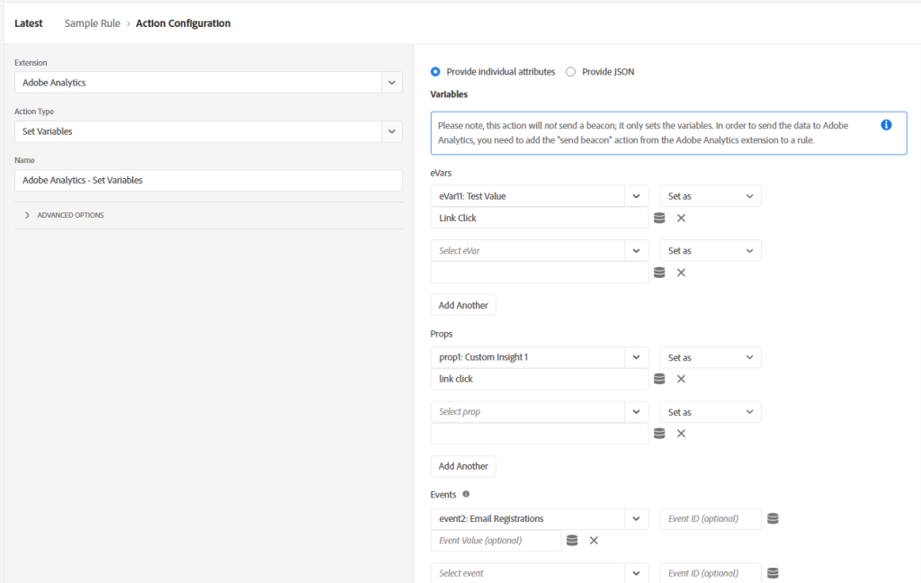
- Under actions, select Adobe Analytics as the extension and Set Variable as the action type and populate the eVar, prop, events and other data points as per the event.
- Sending the Data to Adobe Servers. Under actions, select Adobe Analytics as the extension and Send Beacon as the action type
AppMeasurement.js provides two core methods for sending data to Adobe Analytics: s.t() and s.tl().
-
- s.t() – Page View Tracking
- The s.t() method is used to fire a page view hit. When called, it sends all of the currently set s variables to Adobe Analytics and registers the hit as a page view.
- Key characteristics of s.t():
- Increments the Page View metric in Adobe Analytics reports
- Resets most variables after the call is made (unless persistence is configured)
- Should be called once per logical page load or virtual page view
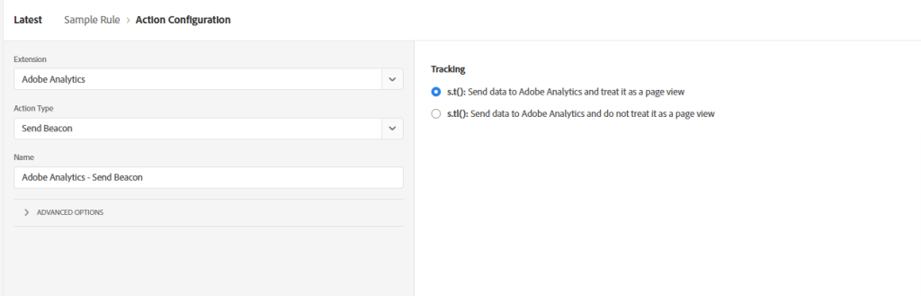
- s.t() – Page View Tracking
-
- s.tl() – Link Tracking
- The s.tl() method is used to fire a link tracking hit – sometimes also called a custom link hit. Unlike s.t(), a call to s.tl() does not increment the Page View metric. Instead, it records a custom interaction event.
- The signature of s.tl() is:
- s.tl(linkObject, linkType, linkName);
- The parameters are:
- linkObject: The HTML element that was interacted with (or true to suppress the default 500ms delay)
- linkType: A string indicating the type of link – ‘o’ for custom link, ‘d’ for download link, ‘e’ for exit link
- linkName: A descriptive name for the link interaction, used in Adobe Analytics reports
- Key characteristics of s.tl():
- Does not increment the Page View metric
- Used for tracking button clicks, form submissions, video interactions, scroll depth, and any other non-page-view interaction
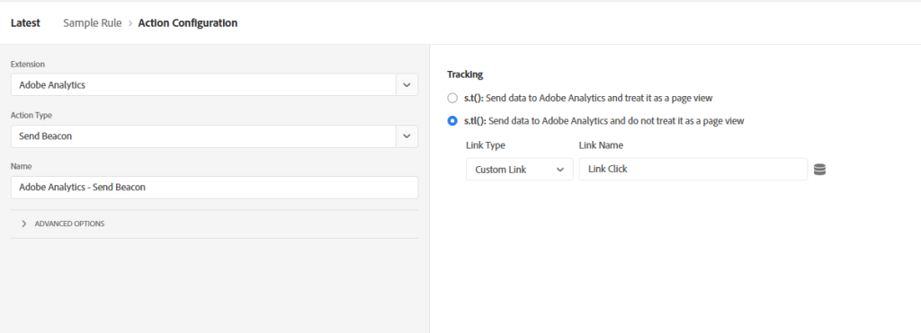
- s.tl() – Link Tracking
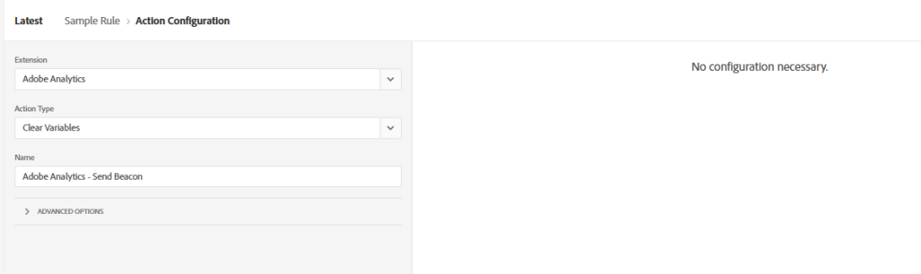
- Clear Variable is used to clear the s object so that the data is not incorrectly passed in next event.
Conclusion
AppMeasurement.js became the standard for Adobe Analytics since it provided a direct and simple method for sending data into Adobe Analytics report suites. It provides maturity and stability since it has been developed over time and is battle-tested in large-scale production applications.
It is considered a legacy approach.js is still fully supported by Adobe and remains a viable option, particularly for businesses that are not yet ready to switch to the Adobe Experience Platform Web SDK.