


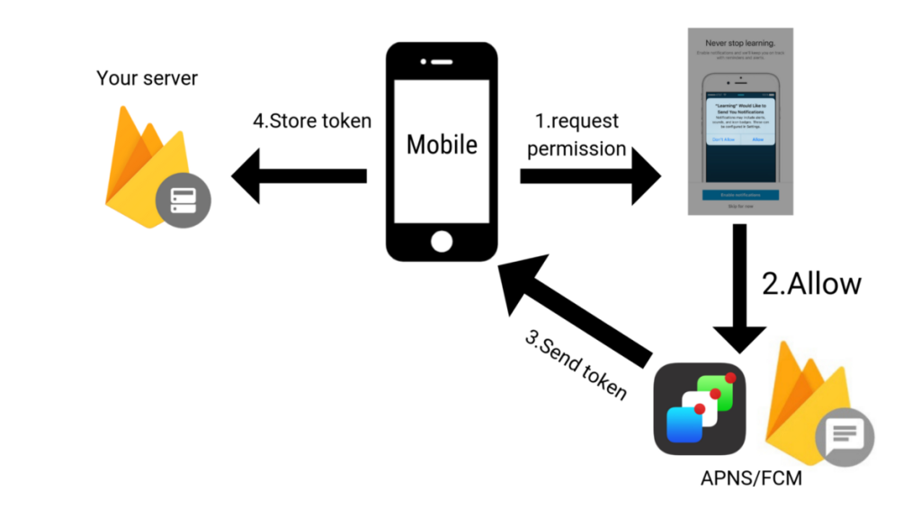
Push Notification in React Native with FCM
Introduction
Push notifications bridge the gap between your backend and the user’s device — essential for real-time alerts, order updates, or user engagement. Setting up FCM in React Native involves the Firebase Console, native Android configuration, runtime permissions, and JavaScript handlers. A misstep in any layer causes silent failures.
While working on a React Native project, setting up push notifications was one of those things that looked simple at first but had a lot of moving parts once you got into it—especially when handling different app states and platform quirks.
In this guide, I’ll walk through how to set up push notifications in a React Native app using Firebase Cloud Messaging (FCM), along with some practical notes from actually implementing it.
Why Push Notifications Matter
Push notifications give your app a direct line to the user—even when the app isn’t open. Whether it’s a transactional update, a reminder, or something personalised, they help bring users back at the right moment.
Real-World Use Cases
Push notifications are used in many real-world applications, not just for promotions or marketing messages. They help apps communicate important updates to users in real time.
Some common use cases are the following:
- Order & Delivery Updates
- Shopping and delivery apps use notifications to share order confirmations, shipment updates, and delivery status.
- Chat & Messaging Apps
- Messaging apps notify users instantly when they receive new messages, even if the app is closed.
- Banking & Security Alerts
- Banking apps use notifications for OTPs, transaction updates, and security alerts.
- Reminders & Scheduling
- Healthcare, education, and productivity apps send reminders for appointments, meetings, tasks, or deadlines.
- Personalised Notifications
While implementing FCM in React Native, one important learning was that handling notifications becomes more challenging when supporting different app states (foreground, background, and terminated) across multiple Android versions.
Setting Up Firebase — Dependencies & Configuration
https://rnfirebase.io/storage/usage

rnfirebase.io
React Native Code:
Install Required Packages:
yarn add @react-native-firebase/app
yarn add @react-native-firebase/messaging
Implementation — App.tsx
Import the following package after installation of the above dependencies:
import messaging from '@react-native-firebase/messaging';
Requesting Permission in Android:

Android Request Permission
Full code snippet of app.tsx

App.tsx
Once you run the app, the log will print the token something like this:
Token: dHUmDe-FRnenw6UFw2km5n:APA91bHjDopiNnJ2w8kbdXvIGFPgZT6anTHXTqn2k016ukTRO0j81UJ1DSQ6KisPKi6W5_7Nae7k30v35CJtZhm8mSl2mypI8fgCUrY_odlyEthkugh6wp4
Handling Notifications Across App States
1. Foreground State
Handler: messaging().onMessage()
FCM delivers the payload to JavaScript but does not show a system notification. You handle the display via a toast or a local notification library.
2. Background State
Handler messaging. setBackgroundMessageHandler()
The system shows the notification automatically. For custom logic, register a handler in `index.js` ‘

Custom Notification
Android Native Configuration:
1. android/build.gradle (Project-level)
Add Google Services classpath:
buildscript {
dependencies {
classpath("com.google.gms:google-services:4.4.2")
}
}
2. android/app/build.gradle` (App-level)
Apply the plugin at the top:
apply plugin: "com.android.application"
apply plugin: "org.jetbrains.kotlin.android"
apply plugin: "com.facebook.react"
apply plugin: "com.google.gms.google-services"
3. AndroidManifest.xml
Add the `POST_NOTIFICATIONS` permission, the following (required for Android 13+):
<uses-permission android:name="android.permission.INTERNET" />
<uses-permission android:name="android.permission.POST_NOTIFICATIONS" />
Create Firebase Project & Download“
1. Go to [Firebase Console](https://console.firebase.google.com/) and create a project.
2. Navigate to **Messaging** under your project.
3. **Select Platform — Android.**
4. **Fill in the package name** — must match `applicationId ” in `android/app/build.gradle ” (e.g., `com.pushnotification ”).
5. Download `google-services.json it and place it in the folder.

firebase messaging

Package Name

download google-services.json
and place in the android/app path like below:

google-services.json
Sending a Test Push Notification from Firebase Console
Once your setup is done and you have a device token, the easiest way to verify everything is working is by sending a test notification directly from the Firebase Console.
Here’s how you can do it:
Step 1: Open Firebase Console
Go to the Firebase Console: https://console.firebase.google.com/ and open your project.
From the left sidebar, navigate to the Engage section and click on Messaging (sometimes labelled as Campaigns).

Create your first campaign.
Step 2: Create a New Campaign
Click on “Create your first campaign” (or “New campaign” if you’ve already created one before).
Choose Firebase Cloud Messaging as the campaign type.

Firebase Messaging Onboarding
Step 3: Configure the Notification
You’ll be prompted to enter the basic notification details:
Title – This is what will appear as the notification heading
Message – The body content of your push notification
Keep it simple for testing purposes.

FCM title with Message
Step 4: Send a Test Notification
On the right-hand side, you’ll see a “Send test message” button.
Clicking this will open a dialogue where you can enter the device token of the device you want to target.

Add Token
Step 5: Add Device Token and Send
Paste your device token into the input field, select it, and click on the Test button.
If everything is set up correctly, you should receive the push notification on your device almost instantly.

Test on Device
Now the user will receive the notification, ‘Congratulations’.

Background push notification received.
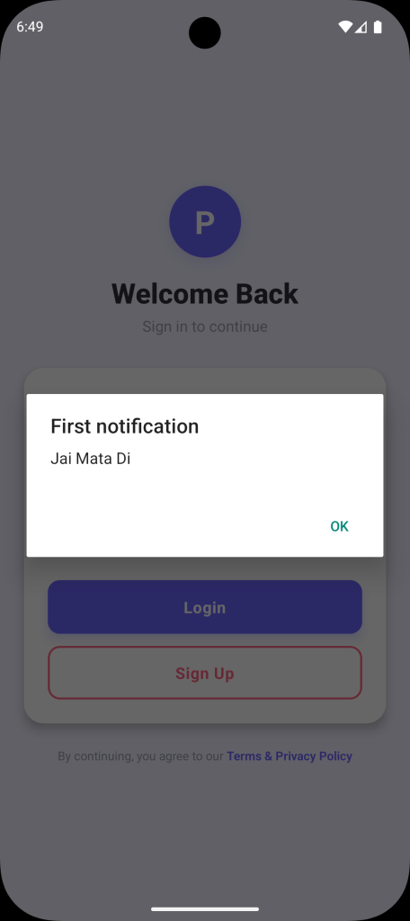
Foreground push notification received.
Full Code:
💻 GitHub: Repository
Challenges Faced During Implementation
Although Firebase Cloud Messaging (FCM) is easy to set up, implementing notifications in a real React Native app comes with a few challenges.
1. Different Behaviour Across App States
Notifications behave differently depending on whether the app is
- In the foreground
- Running in the background
- Completely closed (terminated)
For example:
- In the foreground, Android does not show notifications automatically.
- In the background, notifications are handled by the system.
- In the terminated state, the payload structure becomes very important.
Because of this, separate handling and testing were needed for each app state.
2. Android Version Compatibility
Starting from Android 13 (API 33+), notification permission must be requested at runtime using POST_NOTIFICATIONS.
Without this permission:
- FCM tokens are still generated
- Firebase shows successful delivery
- But notifications do not appear on the device
This can make debugging confusing.
3. Token Refresh Handling
FCM tokens can change after the following:
- Reinstalling the app
- Clearing app data
- Device restoration
To avoid notification failures, the updated token should always be synced with the backend server.
Performance & Reliability Considerations
In production environments, push notifications require more than just successful delivery. Reliability, battery optimisation, and user experience also become important factors.
Battery Optimisation Restrictions
Modern Android devices aggressively optimise background processes to improve battery life.
On some devices (especially Xiaomi, Vivo, Oppo, and OnePlus), notifications may be delayed because the operating system restricts background services.
During testing, notifications worked perfectly on some devices while appearing delayed on others due to manufacturer-specific battery optimisation policies.
Notification Priority
Backend Retry Strategy
Push delivery is not guaranteed in unstable network conditions.
To improve reliability, backend systems should:
- Store notification delivery status
- Retry failed notifications
- Handle invalid or expired FCM tokens
This becomes especially important in transactional systems such as banking or delivery applications.
Common Issues & Debugging
-
Issue Possible Cause Solution Notifications not received Incorrect Firebase setup Verify google-services.json, package name, and Gradle plugin configuration Token generation fails Firebase not initialised properly Check @react-native-firebase/app installation Foreground notifications not visible Expected FCM behaviour Use onMessage() and display local notification manually Notifications delayed Battery optimisation restrictions Disable battery optimisation for testing Android 13 notifications missing Runtime permission not requested Request POST_NOTIFICATIONS permission dynamically Background handler not triggered Incorrect payload structure Use proper data payload configuration Duplicate notifications Mixed local + remote notification handling Ensure notifications are not displayed twice Build failures SDK version mismatch Use compileSdkVersion 33+ and clean Gradle build Token becomes invalid App reinstall or token refresh Implement token refresh listener and backend sync
Conclusion
Implementing push notifications in React Native using Firebase Cloud Messaging is not just about integrating an SDK—it requires careful handling of permissions, app lifecycle states, payload structures, and Android platform behaviours.
The actual notification code is relatively small, but achieving reliable delivery across foreground, background, and terminated states requires thorough testing and proper native configuration.
Some key learnings from this implementation were the following:
- Android notification behaviour varies significantly across OS versions
- Runtime permissions are critical for Android 13+
- Foreground notifications require manual handling
- Token management is essential for long-term reliability
- Device-specific battery optimisation can impact delivery consistency
- Once these areas are properly addressed, FCM becomes a reliable solution for building scalable real-time communication systems in React Native applications.
At TO THE NEW, we help businesses build scalable mobile applications with production-ready notification systems and seamless user engagement experiences.
We at TO THE NEW help your business build web and hybrid applications for Android/iOS mobile devices with native UI/UX experience and performance. Contact us for more.