


Introduction
Apps and devices generate a lot of internal email, monitoring alerts, payroll notices, printer scans, that no human ever needs to read individually but every business still depends on landing reliably. Routing that through a normal mailbox works until it doesn’t: throttling, deliverability problems, no clean way to track what’s actually being sent.
Microsoft built High Volume Email for exactly this gap. Microsoft High Volume Email (HVE) is designed specifically for this purpose, providing a scalable and cost-effective solution for application and device-generated email.
Here’s what this post covers: how HVE compares to the other delivery methods, the service limits that actually constrain design decisions, account creation through both the portal and PowerShell, authentication choices that matter for security, and the operational checks worth running before go-live.
What is High Volume Email (HVE)?
High Volume Email (HVE) is built for application and device-generated mail rather than user mailboxes. It enables organizations to send large volumes of internal email notifications without consuming traditional mailbox licenses.
Common use cases include:
- Payroll and HR notifications
- Monitoring and alerting systems
- Line-of-business application messaging
- Printer and scanner output
- Compliance and security notifications
Key HVE Limitations and Constraints
Before implementing HVE, it is important to understand its operational limitations:
- HVE accounts do not have mailboxes and cannot receive email.
- Messages can only be delivered to recipients within the same Microsoft 365 tenant.
- External email delivery is not supported.
- Replies are routed through a configured Reply-To address rather than the HVE account itself.
HVE vs SMTP Relay vs SMTP Client Submission
| Capability | SMTP Client Submission | SMTP Relay | High Volume Email |
|---|---|---|---|
| Sends to internal recipients | Yes | Yes | Yes |
| Relays to internet | Yes | Yes | No |
| Authentication Method | Microsoft 365 User Credentials | Static IP | HVE Credentials or OAuth |
| Port | 587 or 25 | 25 | 587 |
| TLS Required | Yes | Optional | Yes |
| Sent Items Storage | Yes | No | No |
Important: If your application must send email to external recipients, High Volume Email is not the correct solution. Consider SMTP Relay or SMTP Client Submission instead.
High Volume Email Service Limits
| Limit | Value |
|---|---|
| Recipient/Message Rate Limit | None |
| HVE Accounts Per Tenant | Up to 100 |
| Recipients Per Message | Up to 50 |
| Maximum Message Size | 10 MB |
| Recipient Scope | Internal Tenant Only |
| Connections | 100 per IP or 250 authenticated per tenant |
Handling More Than 50 Recipients
- Use a static Distribution List (DL) when the audience rarely changes.
- Use a Dynamic Distribution List (DDL) when recipients change frequently.
- Billing is calculated after group expansion in both scenarios.
Unsupported Configurations
- Adding HVE accounts as members of distribution lists.
- Adding HVE accounts to mail-enabled security groups.
- Using HVE for external email delivery.
Billing Setup for High Volume Email
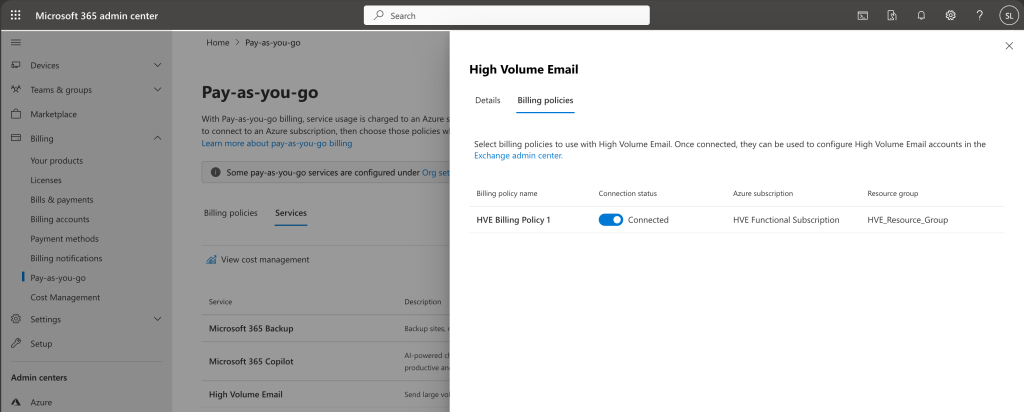
High Volume Email requires Microsoft 365 Pay-As-You-Go billing before any account can send messages.
- Confirm M365 pay-as-you-go billing is configured for the tenant and connected to an Azure subscription
- Create a billing policy under M365 pay-as-you-go billing
- Connect the billing policy to the High Volume Email service in the Microsoft 365 admin center
- Assign the billing policy to each HVE account (at creation or after)
- Confirm the account status shows Active before going live.
Billing Mechanics
- Billed metric: Expanded delivered recipients
- Rate: $0.000042 per recipient (approximately $42 per million recipients)
- One billing policy can be assigned to multiple HVE accounts
- An HVE account can only have one billing policy assigned at a time
- No billing policy means the account cannot send email
Account Status Reference
| Status | Meaning |
|---|---|
| Active | Valid policy assigned, account can send |
| Not Active | No policy assigned, or policy issue (deleted, disconnected, inactive subscription) |
Creating an HVE Account — Step by Step (Exchange Admin Center)
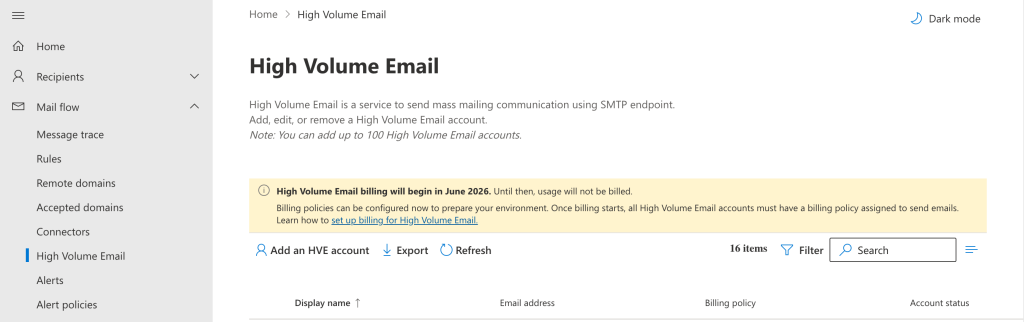
- Go to admin.exchange.microsoft.com.
- Navigate to Mail Flow > High Volume Email.
- Select Add an HVE Account.
- Provide the display name, primary email address, alias, and password (if using Basic Authentication).
- Select a billing policy from the dropdown, or skip and assign later.
- Review the configuration and click Create.
- Verify the account status changes to Active.
Creating an HVE Account Using PowerShell
| Step | Action | PowerShell Command |
|---|---|---|
| 1 | Create HVE Account | New-MailUser -HVEAccount -Name "HVE-Monitoring-Prod" -PrimarySmtpAddress "hve-monitoring@contoso.com" |
| 2 | List Billing Policies | Get-BillingPolicy -ResourceType HVE |
| 3 | Assign Billing Policy | Set-HVEAccountBillingPolicy -Identity "hve-monitoring@contoso.com" -BillingPolicyId "11111111-1111-1111-1111-111111111111" |
| 4 | Verify Assignment | Get-HVEAccountBillingPolicy -Identity "hve-monitoring@contoso.com" |
| 5 | Configure Reply-To Address | Set-HVEAccountSettings -Identity "hve-monitoring@contoso.com" -ReplyTo "it-alerts@contoso.com" |
Authentication — Security Considerations
- If Security Defaults are enabled in Entra ID, basic auth (including SMTP) is disabled tenant-wide — HVE must use OAuth in that case.
- Recommendation: use OAuth regardless of Security Defaults status. Long-lived SMTP passwords stored in device configs or app settings are a standing credential-leak risk
- Apply authentication policies specifically to HVE accounts to avoid conflicts with tenant-wide auth restrictions.
Monitoring High Volume Email Usage
Administrators should periodically review HVE usage reports to identify abnormal sending patterns and unexpected billing increases.
- Open Exchange Admin Center.
- Navigate to Reports > Mail Flow.
- Select High Volume Email.
- Choose a reporting period.
- Review Recipient Volume and Message Volume metrics.
- Drill into individual HVE accounts as needed.
A misconfigured application retry loop can dramatically increase recipient counts and operational costs if not identified early.
Operational Checklist
- Use one HVE account per application or workload.
- Verify billing policy assignment before production deployment.
- Implement OAuth authentication.
- Configure a Reply-To address where required.
- Select an appropriate distribution list strategy.
- Review usage reports regularly.
- Implement monitoring and alerting for billing policy and account status changes.
Conclusion
Microsoft High Volume Email solves a real problem: getting application and device-generated mail out reliably without burning through mailbox throttling limits or losing visibility into what’s actually being sent. But the tradeoff is that HVE accounts are entirely dependent on one thing working correctly, the billing policy. No policy, no send, and there’s no warning period in between.
Before rolling HVE into production, get three things right. Confirm the Azure subscription link is active and won’t lapse unexpectedly. Work out the recipient-expansion math up front, since a single distribution list still counts every expanded recipient for billing purposes. And default to OAuth authentication rather than long-lived SMTP passwords sitting in a device config or app setting.
None of this is technically difficult. It’s just easy to overlook until an account goes silent in production. Treat the operational checklist above as a go-live gate, not an afterthought, and HVE will do exactly what it’s designed to do: move high-volume internal mail reliably, at a cost that scales sensibly with usage.