
Microsoft Entra ID Access Packages: Complete Implementation Guide for Secure and Automated Access Governance
Introduction
Managing who has access to what — across applications, security groups, and enterprise resources — is one of those problems that sneaks up on you. Governance at this level is non-negotiable in enterprise product engineering services, where security, compliance, and identity management must be designed into the product architecture from day one.
That’s exactly the problem Microsoft Entra ID Access Packages are built to solve. Part of the Identity Governance suite, Access Packages let you group related permissions — apps, groups, resources — into a single unit that users can actually request themselves. Instead of chasing down admins for every individual permission, the whole process runs through a defined approval workflow with time limits and periodic reviews baked in. Every request, approval, and expiry is logged, reviewable, and auditable. That’s a meaningful shift from the traditional approach, where access often gets granted informally and quietly sticks around long after it should have been removed.
Overview
This article walks through Access Packages from the ground up — what they are, how to set them up, how approval policies and lifecycle rules work, and how to actually test everything before it goes live. There’s also a section on governance practices worth building around from day one.
1. What Are Access Packages?
Access Packages live inside Microsoft Entra ID’s Identity Governance feature set. The core idea is straightforward: instead of managing permissions individually across every system, administrators can group related resources together and treat them as a single unit.
That bundle can include any combination of the following:
- Security Groups
- Enterprise Applications
- SharePoint Sites
- Teams Resources
Once a package is configured, users request access through a self-service portal. From there, the request moves through whatever approval workflow you’ve defined — and if you’ve set an expiration, access disappears automatically when the time’s up, no manual cleanup needed.
2. Prerequisites Before Creating an Access Package
- Applications must be integrated with Entra ID.
- Security groups should be pre-created (Assigned membership recommended).
- Create a Catalog (e.g., “Contractors”).
- Identify approvers (Manager, Application Owner, Cyber Security).
- Define expiry duration and review cycles.
3. Steps to Create an Access Package
Step 1: Basics Configuration
- Navigate to: Entra Admin Center → Identity Governance → Access Packages → New Access Package
- Provide a Name (e.g., “Business Analyst”).
- Add a detailed description.
- Select the appropriate Catalog.
Step 2: Add Resource Roles
- Pull in the Security Groups that are relevant to this package — only the ones users actually need, not everything that looks loosely related.
- Add the Enterprise Applications tied to the role; if an application isn’t in here, users won’t get provisioned access to it regardless of approval.
- Once everything is added, verify the role-based access mapping carefully.
Step 3: Configure Request Policy
- Define who’s allowed to request this package — in most cases, scoping it to Users in directory is the right starting point.
- Switch on Self-Service Requests so users can initiate access themselves through the portal rather than routing everything through an admin.
- Set Approval Required.
- Enable Business Justification (Mandatory).
- Configure Approval Stages:
- Stage 1 – Manager Approval
- Stage 2 – Cyber Security Approval (Optional but Recommended
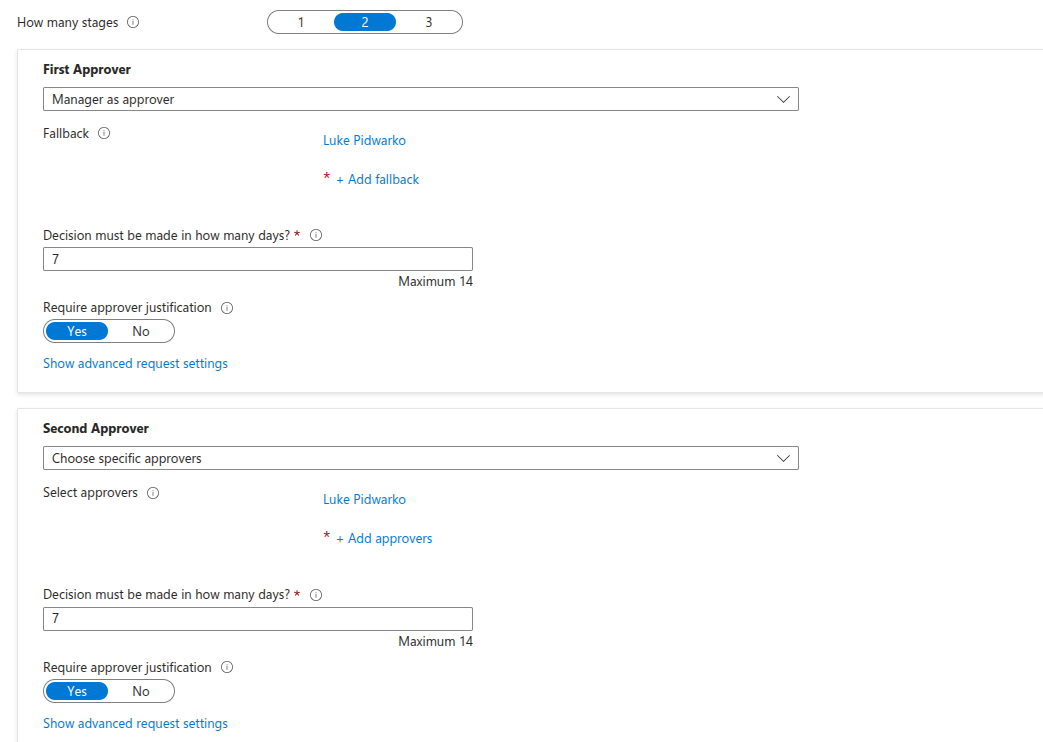
- Decision Window: 14 Days.
Step 4: Lifecycle Settings
- Set access expiry to 30 days — short enough to keep things clean, long enough that legitimate users aren’t constantly fighting renewal cycles.
- Monthly recurring access reviews aren’t optional if you’re serious about governance.
- The user’s direct Manager should be the primary reviewer.
- Always configure a Backup Reviewer — either the App Owner or someone from IT Security — for situations where the Manager is on leave, has left the business, or simply doesn’t respond within the review window.
- Automatic Removal on expiry should be non-negotiable; access that isn’t actively renewed should disappear without requiring anyone to manually step in.
4. Assignment Methods
Self-Service Assignment (Recommended)
- Users initiate the process themselves via https://myaccess.microsoft.com — no helpdesk ticket, no chasing an admin, no waiting in a queue
- From the portal they browse to the relevant Access Package and select it
- Business Justification is a required field before the request progresses — keep it mandatory, it’s a lightweight step that pays dividends during audits and access reviews
- The request routes automatically to the Manager for review and sign-off
- Once approved, provisioning happens without any further manual involvement — every resource inside the package gets granted in one go
Admin Direct Assignment
- Head to the Access Package and open the Assignments tab
- Hit Add Assignment and select the user you’re provisioning for
- Set the duration upfront — don’t leave it open-ended unless there’s a deliberate reason
- Confirm the assignment and verify it reflects correctly before closing out
Important Note on PIM: Privileged Identity Management (PIM) is built for elevated administrative roles — Global Administrator and equivalent — not for routine application access.
5. Testing & Validation
Functional Testing
- Submit a request using a test user.
- Approve request as Manager.
- Verify assignment under Access Package → Assignments.
- Confirm group membership.
- Validate application login.
Expiry Testing
- Assign short expiry (1–2 days).
- Verify automatic removal post expiry.
Access Review Testing
- Navigate to Identity Governance → Access Reviews.
- Complete review as Manager.
- Deny access and confirm automatic removal.
6. Governance Best Practices
- Create one Access Package per job role.
- Avoid direct group assignments outside packages.
- Always enforce business justification.
- Use time-bound access for contractors.
- Enable recurring access reviews.
- Use PIM only for privileged roles.
Conclusion
Access Packages won’t solve every identity governance headache overnight, but they’re one of the more practical tools Microsoft Entra ID offers for bringing real structure to something that tends to get messy fast. Time-bound access, approval chains, recurring reviews — when those three things work together consistently, you stop relying on people remembering to clean things up and start relying on the system doing it for you. That’s a meaningful difference, especially at scale.
If your organisation hasn’t touched Access Packages yet, don’t try to boil the ocean. Pick one role, one department, or one application — build a clean package around it, run it through the full lifecycle, and see where the gaps are. Expand from there once you trust the foundation.
For a practical starting point: spin up a test Access Package, wire in a 2-stage approval flow with Manager and Security Team sign-off, and walk the entire lifecycle from request to expiry. You’ll catch configuration issues early, and your auditors will thank you later.